How To: GPS Course Maps
On our race routes and maps page, you can find a ton of detailed information about navigating your section of the course. This includes written descriptions with turn-by-turn directions, printable maps, and GPS routes. As we mention just about everywhere on our site- use these tools to your advantage! These tools are indispensable for getting you to the next checkpoint in a safe and timely manner. GPS route maps are a very powerful tool in helping you stay on course, but they are not perfect. Having a good sense of the map and the turns/waypoints on your route while watching your GPS is the best strategy.
On our race routes and maps page, we provide links to GPS course maps for each stage on 3 major platforms:
- KOMOOT. If you're unfamiliar with GPS trail routing apps, Komoot is the easiest to get up and running with a map and directions on your smartphone for free
- Trailforks provides a live view of your location on the course map directly on your smartphone. You'll need a pro account (which comes with a free trial) for live navigation on your smartphone.
- Garmin routes are intended for those who have a stand-alone Garmin navigation device.
The below information is intended to help you get set up with our GPS routes on these platforms. These instructions should be generally the same on all smartphone types, but may not follow exactly; these services have their own instructions that you may find helpful. And, you probably have people on your racing team who are familiar with these (and other!) GPS routing apps and can walk you through any of it!
KOMOOT
- Download the Komoot app on your phone's app store.
- Open the app and complete the steps to register for a (free!) account
- On your phone, computer, or any other web device, visit our our race routes and maps page, and open the Komoot link for your stage of the race course. This should open the route directly in the app; if it does, just click "Save" when the screen opens in the app, and tick "save offline" when asked and you're all done! If the route doesn't open in the app, the Komoot website will open with an overview of the stage.
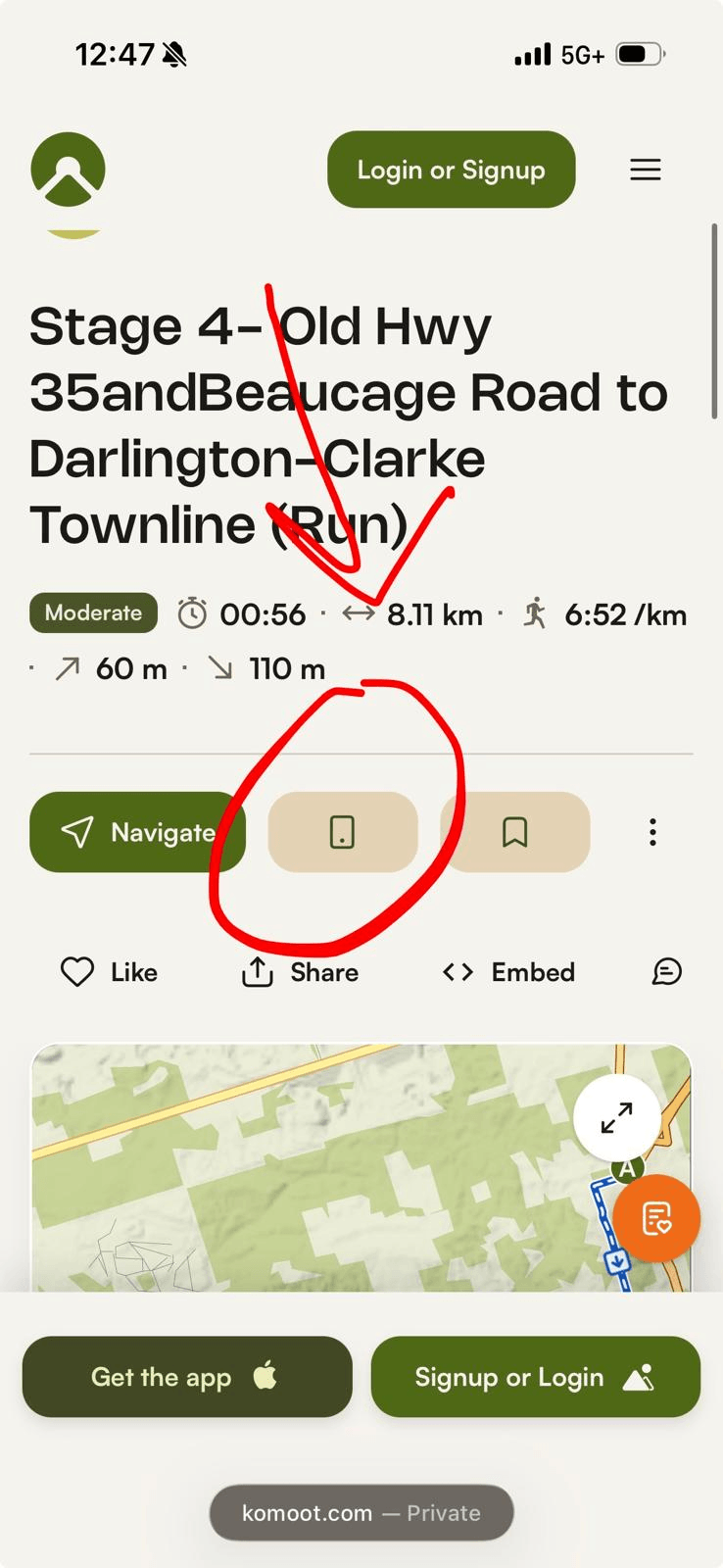
- Press the button that looks like a small image of a phone to load the road to your phone app (screenshot below). Komoot may ask you to log-in to your account; log in to the same account that you created in step 2.
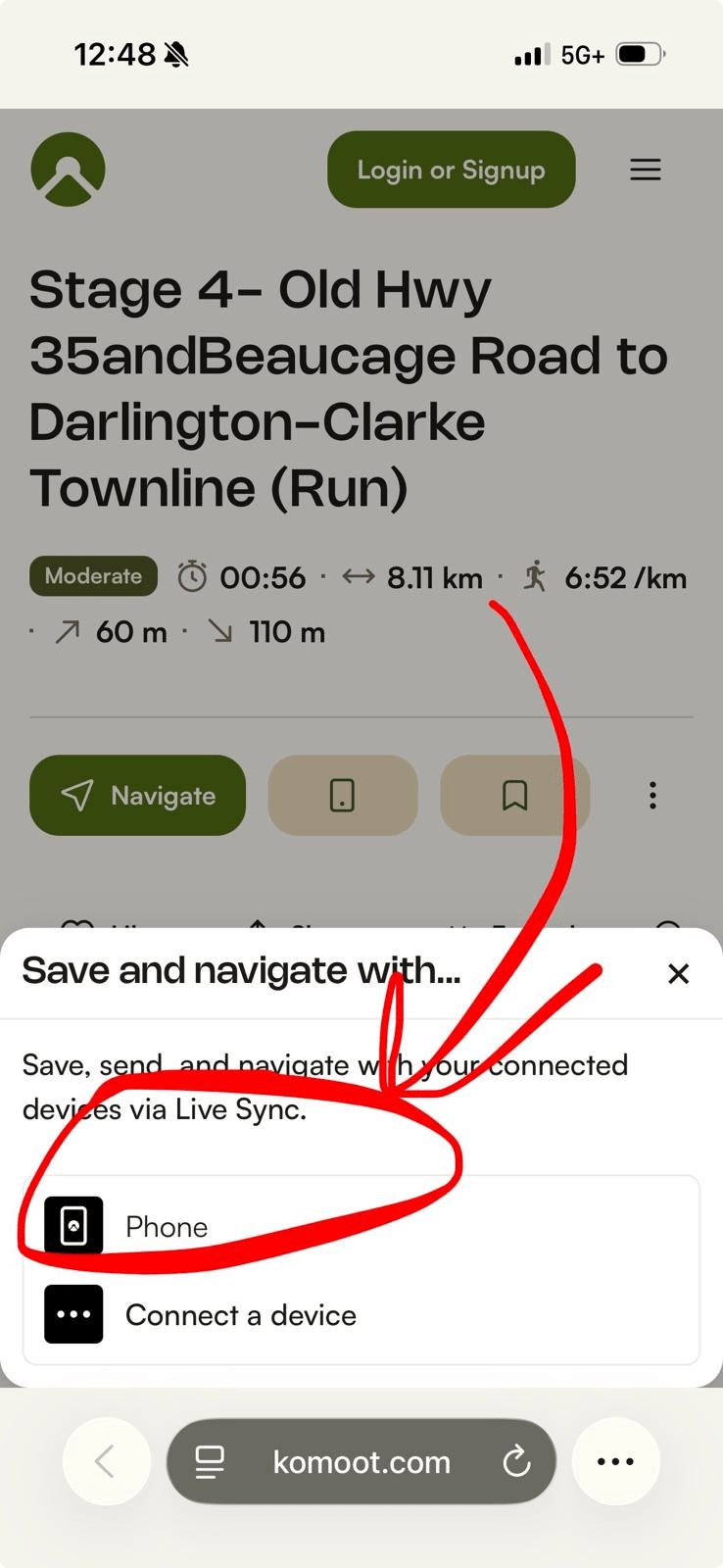
- Once logged in, Komoot may ask you what kind of device you want to send the route to. Select "Phone" (screenshot below)
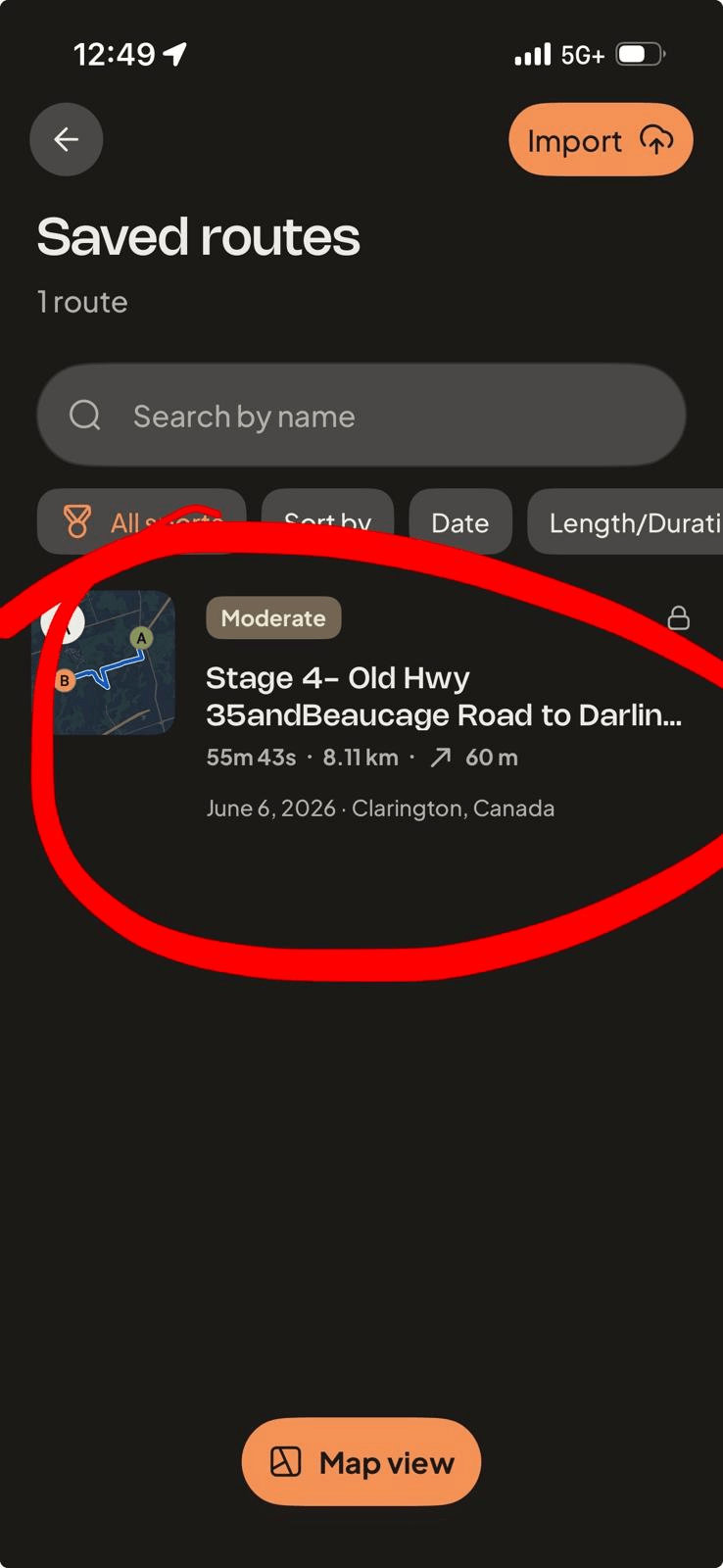
- Now, open the app on your phone (that you logged into in Step 2). Click on "profile" at the bottom right of the screen, and then "Saved routes". Your race stage will appear here (screenshot below).
- Click on the stage to open it, and scroll down the page to the "Save offline" button. Click to download the route to your phone.
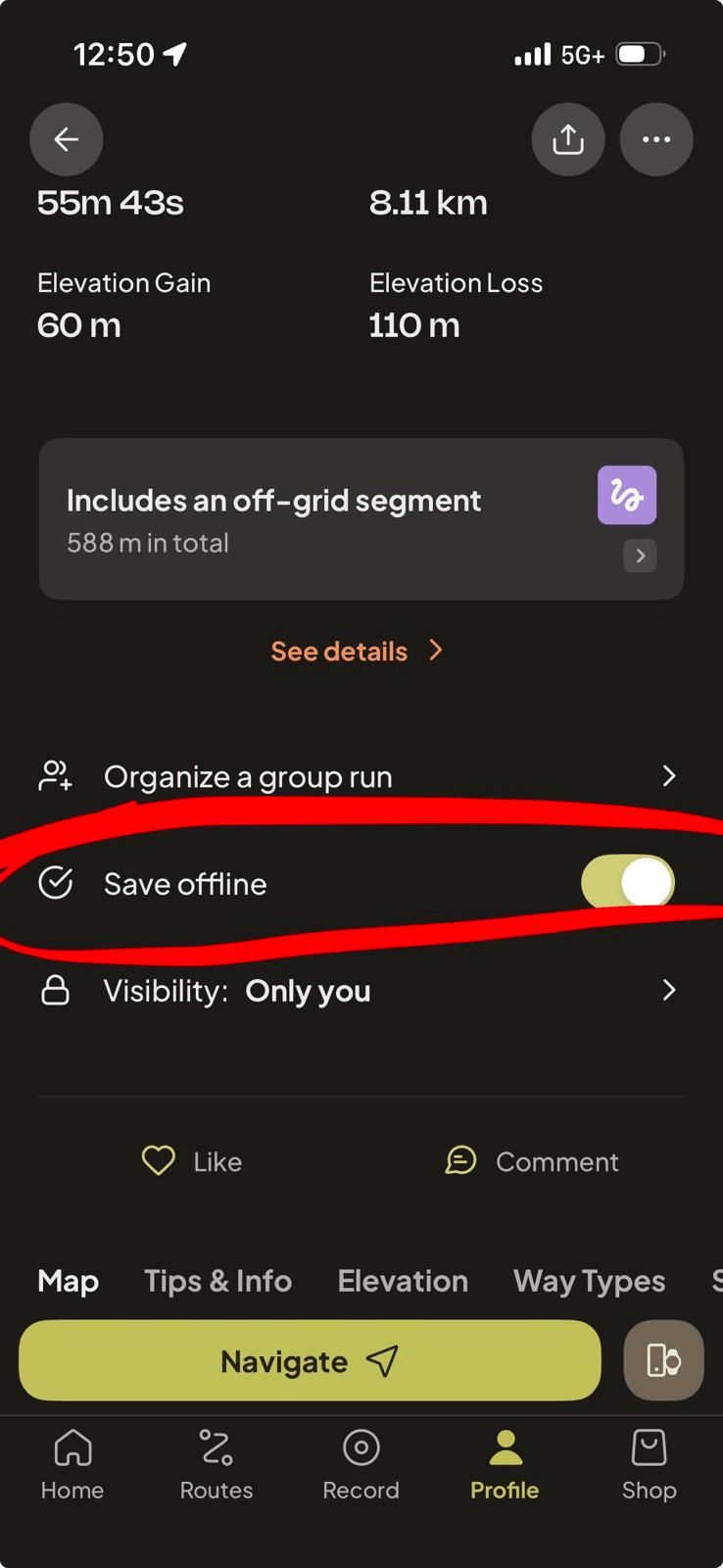
- That's it! On race day, access the route in your app and click "Navigate". Komoot will show you your location on the map as you proceed through the course. Audio directions can be enabled.
TRAILFORKS
Go to https://www.trailforks.com/ and register for an account, including a (two week free trial) Pro account
Download the Trailforks mobile app from your device's App store, and log into the app using the account you just created.
On your mobile device, visit our race routes and maps page, and click on the "Trailforks" link for your section. This will open the stage in your mobile app (screenshot below).
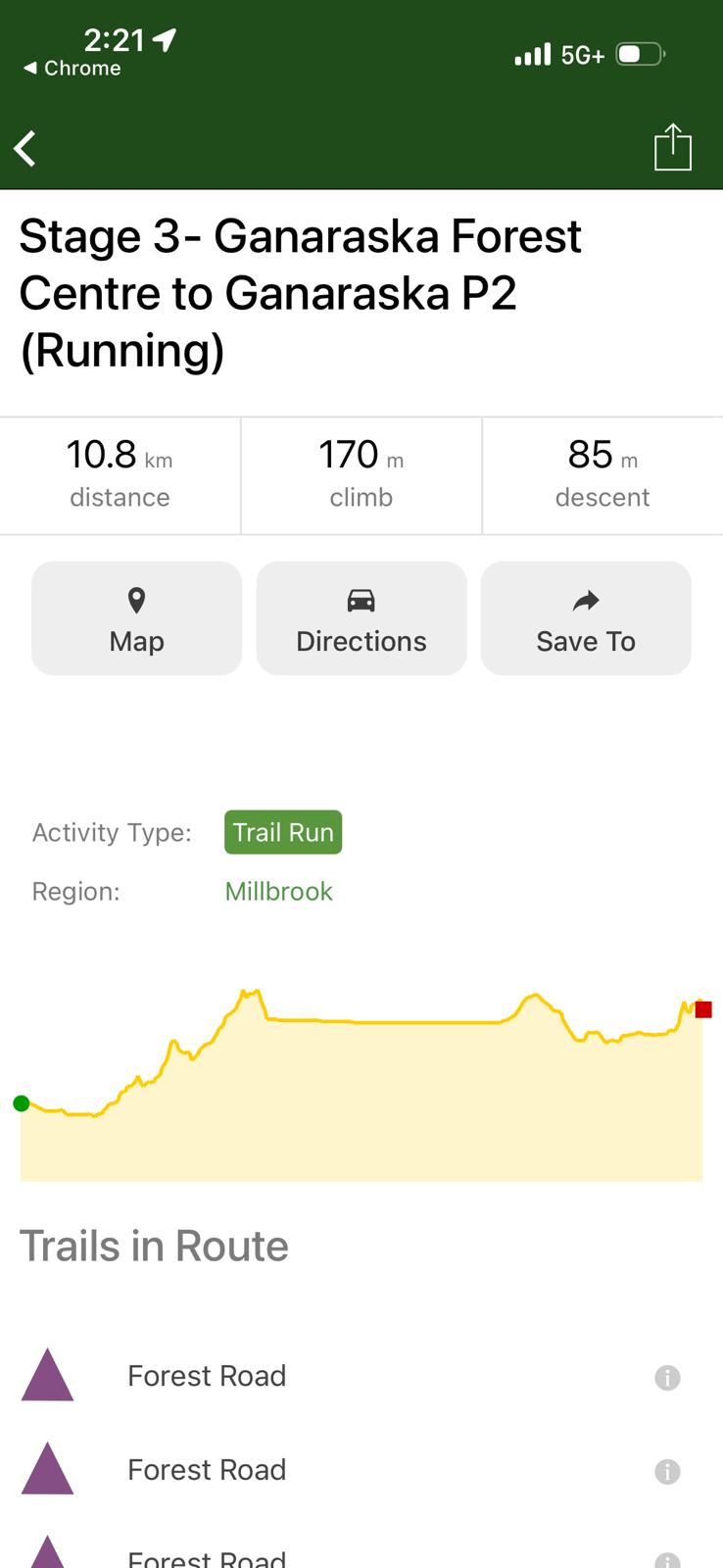
Press the "Map" button and an overall view of the race course will show up (screenshot below)
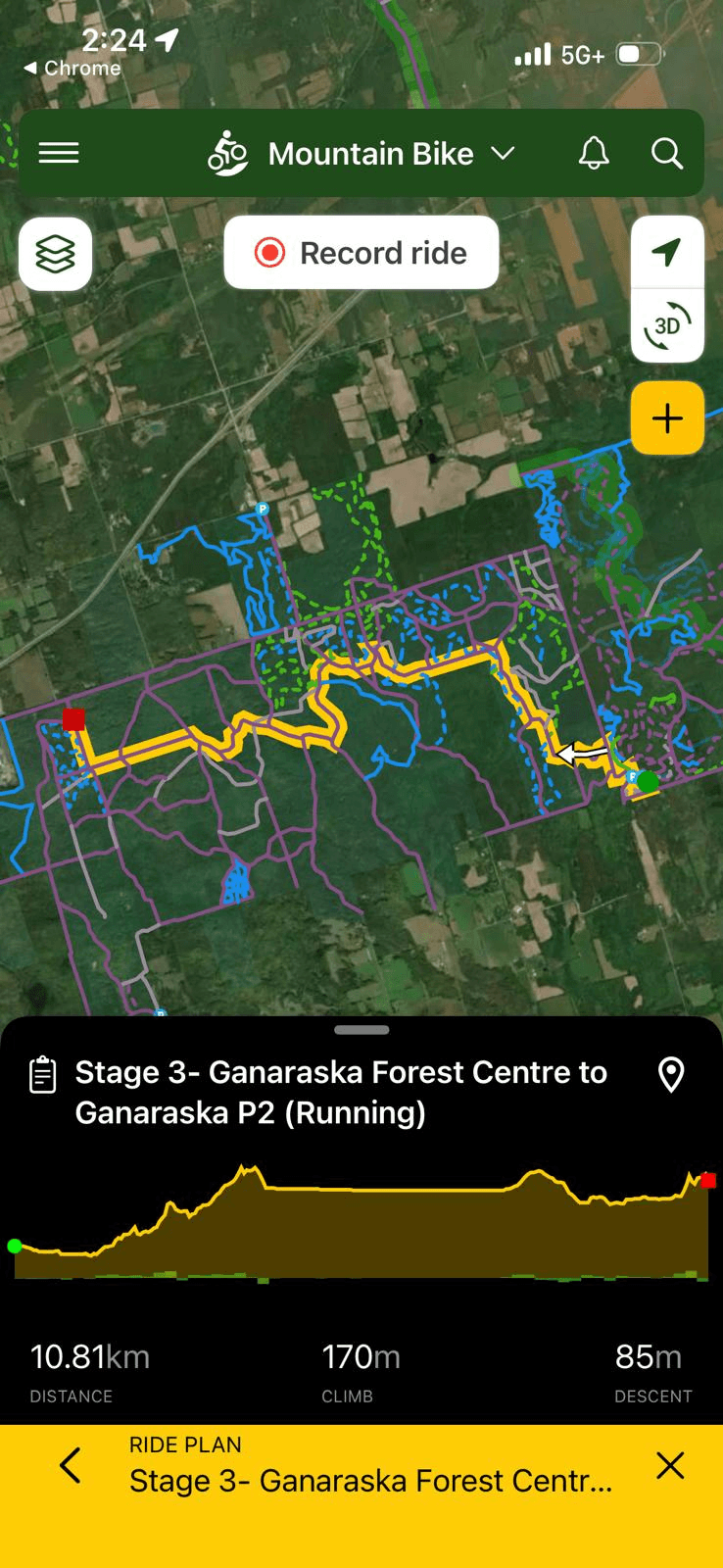
Click on the map layers button at the top left (Screenshot below)
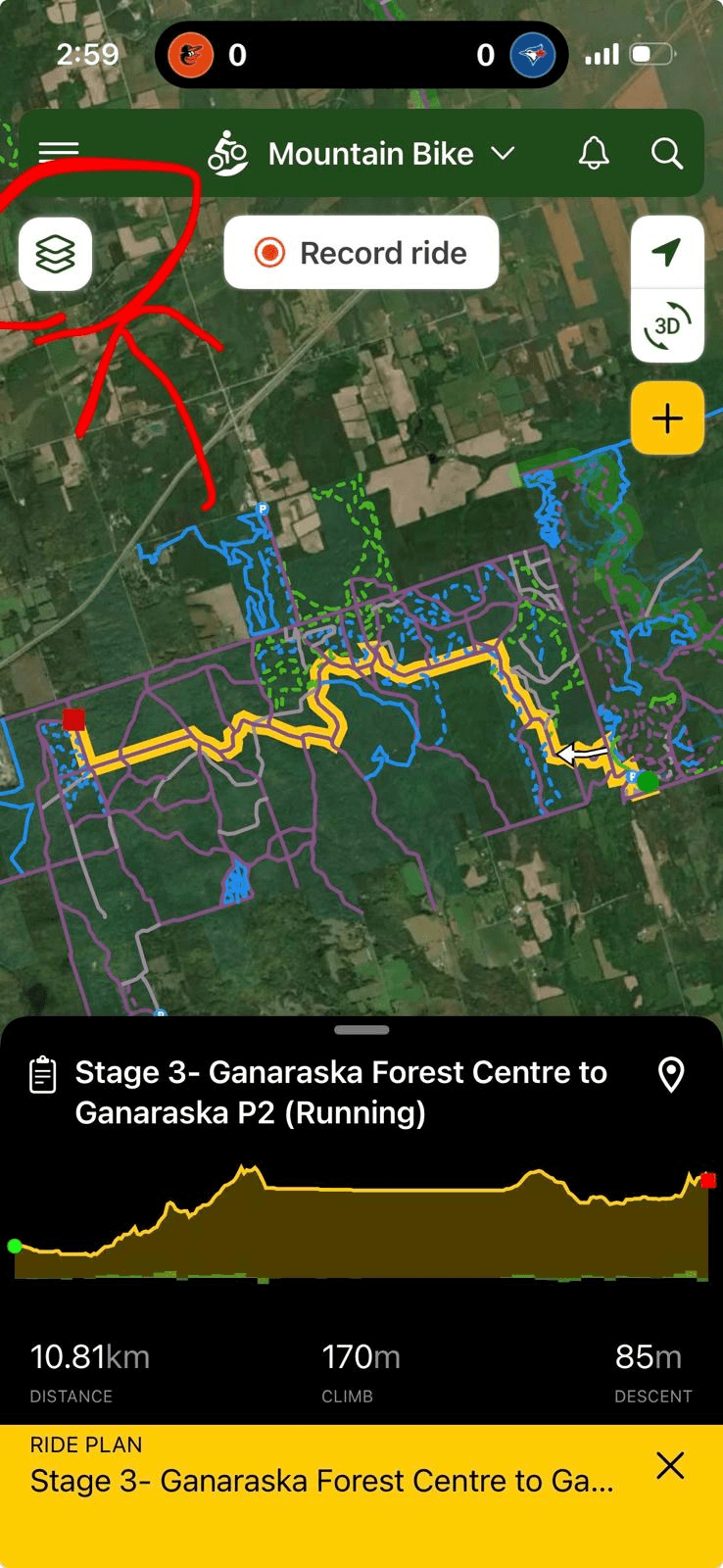
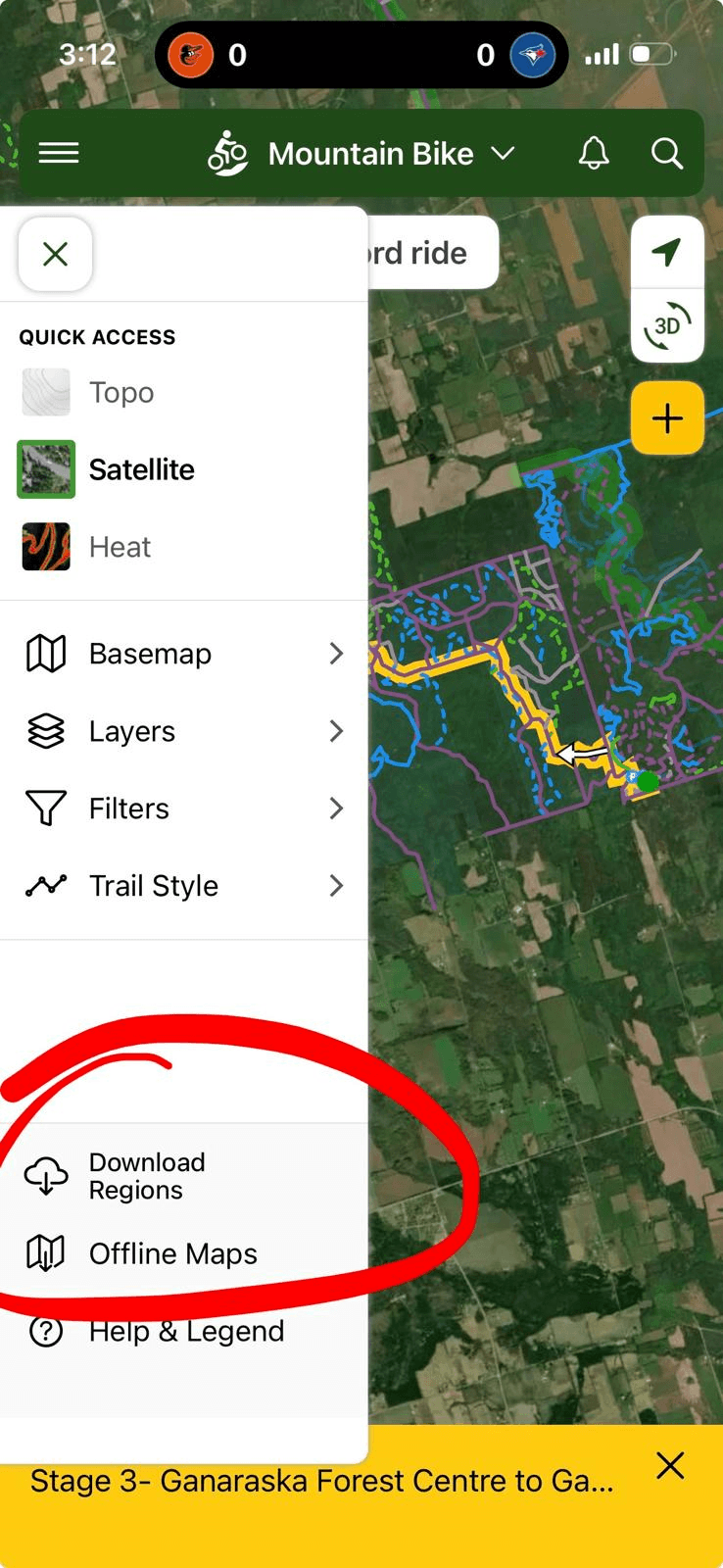
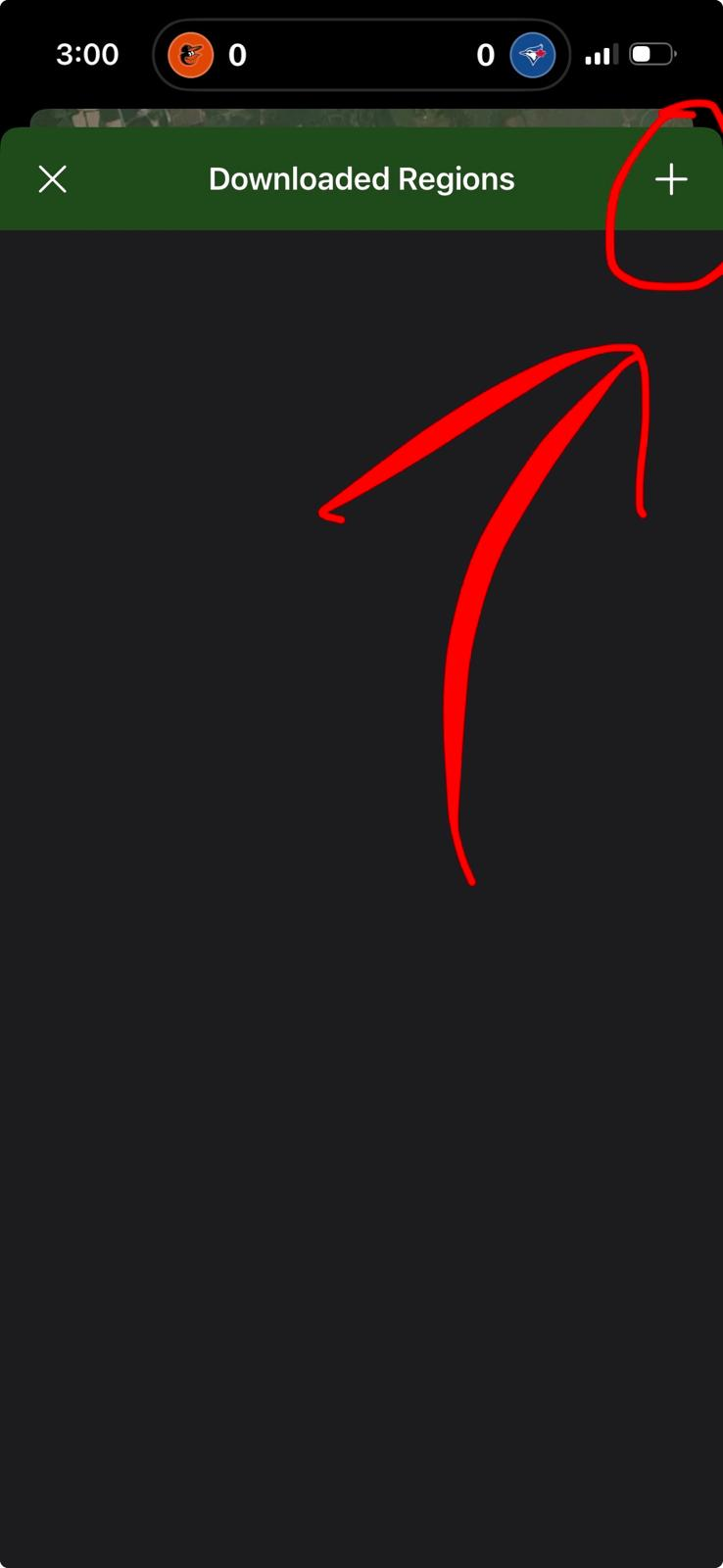
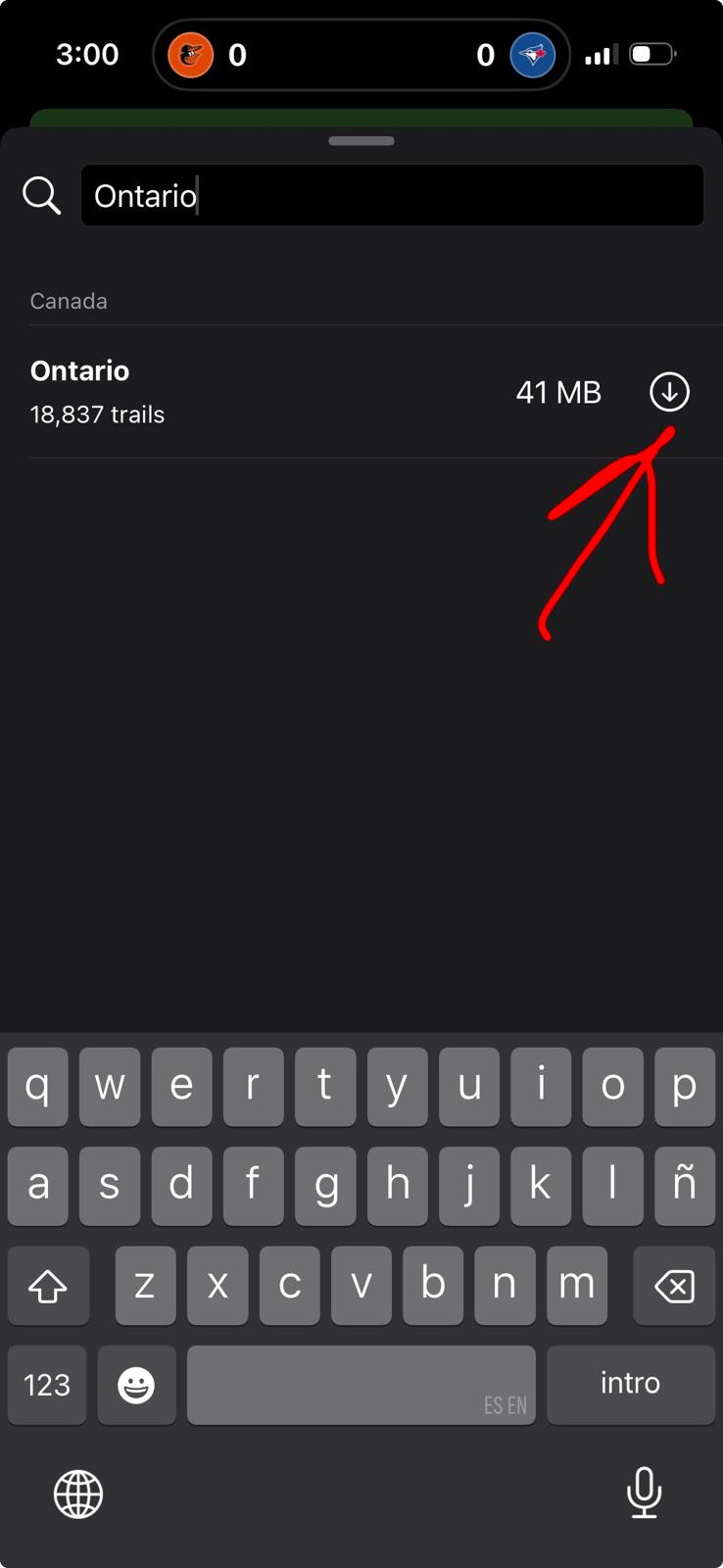
Click the "Download Region" button in the left sidebar. On the page that opens, click the + button in the top right and search for "Ontario". Click to download. This will download trail information to your device to help with routing without cell service. Screenshots below.
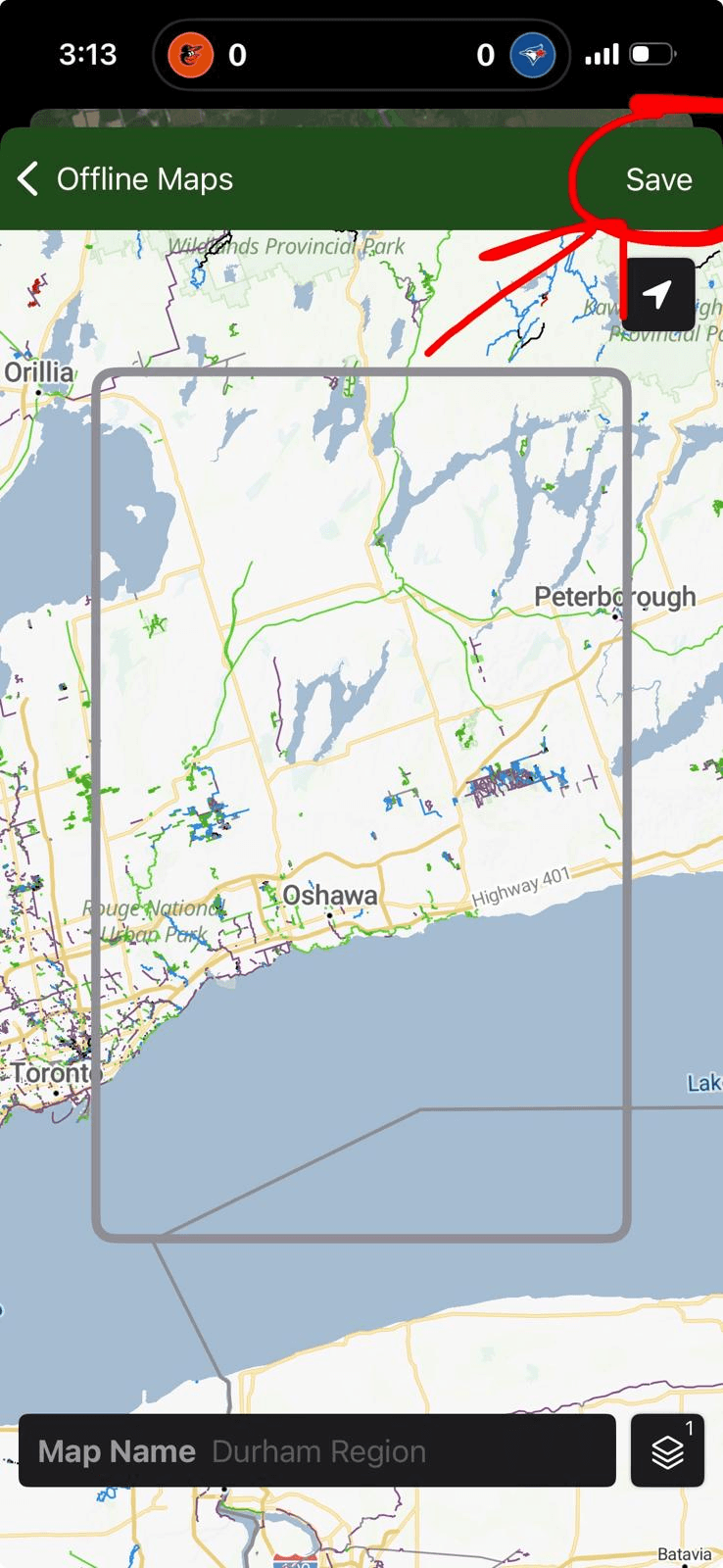
In the same sidebar, click "Offline Maps". Press the "Add Offline Map" button in the middle of the screen, or the + in the top right. A map will open, position the rectangle to include the area of your race stage and then click "Save" in the top right. This will download map layers to your device to help with offline navigation/visuals.
When you're ready to race, press the "record ride" button at the top of the map. The app will start tracking your activity and your location will be shown on a top-down view as you proceed through the route.
GARMIN
Garmin GPS maps are intended only for use with a standalone piece of Garmin GPS hardware (GPS watch or other navigation device); the steps below assume that if you have such a device, you've followed the manufacturers steps to get it set up and paired with the Garmin Connect app. The Garmin Connect app does NOT allow for GPS navigation directly on your smartphone.
- On your smartphone or other device with the Garmin Connect app paired to your Garmin GPS hardware, visit our race routes and maps page.
- Click on the "Garmin" link for your stage.
- The course map will open in your Garmin Connect app. Press the button to send the route to your Garmin device (screenshot below)
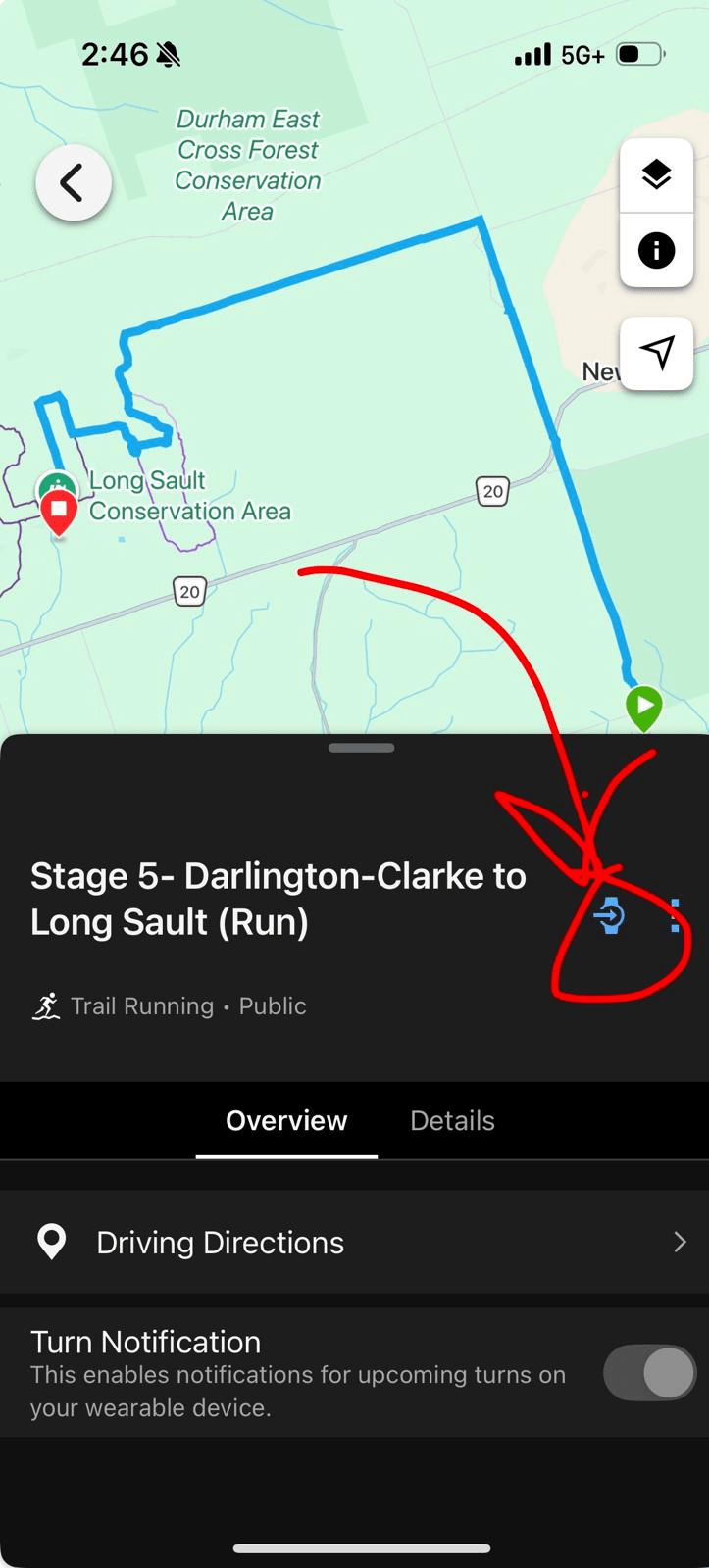
- Sync your device with the Garmin Connect app and the course map will be loaded onto your device for use when you start a new activity
Sponsors & Supporters
-
Yearlong Supporter
-
-
Bib Sponsor
-
-
Community Checkpoint Sponsors
-
-
Prize Sponsors
-
-
In-Kind Sponsors
-