How to Track your Kilometers Using the ASICS Runkeeper App
Please note, you can only connect your Runkeeper account to the Challenge Leaderboard once the challenge starts on March 1st, 2026.
Download the ASICS Runkeeper App on your mobile device (I-phone or Android) and create a free account (if you don’t already have one)
Once you have downloaded the ASICS Runkeeper App, please adjust the following settings before connecting to the Diamond Dash Challenge. Please note you cannot connect to the leaderboard until the challenge begins on March 1st.
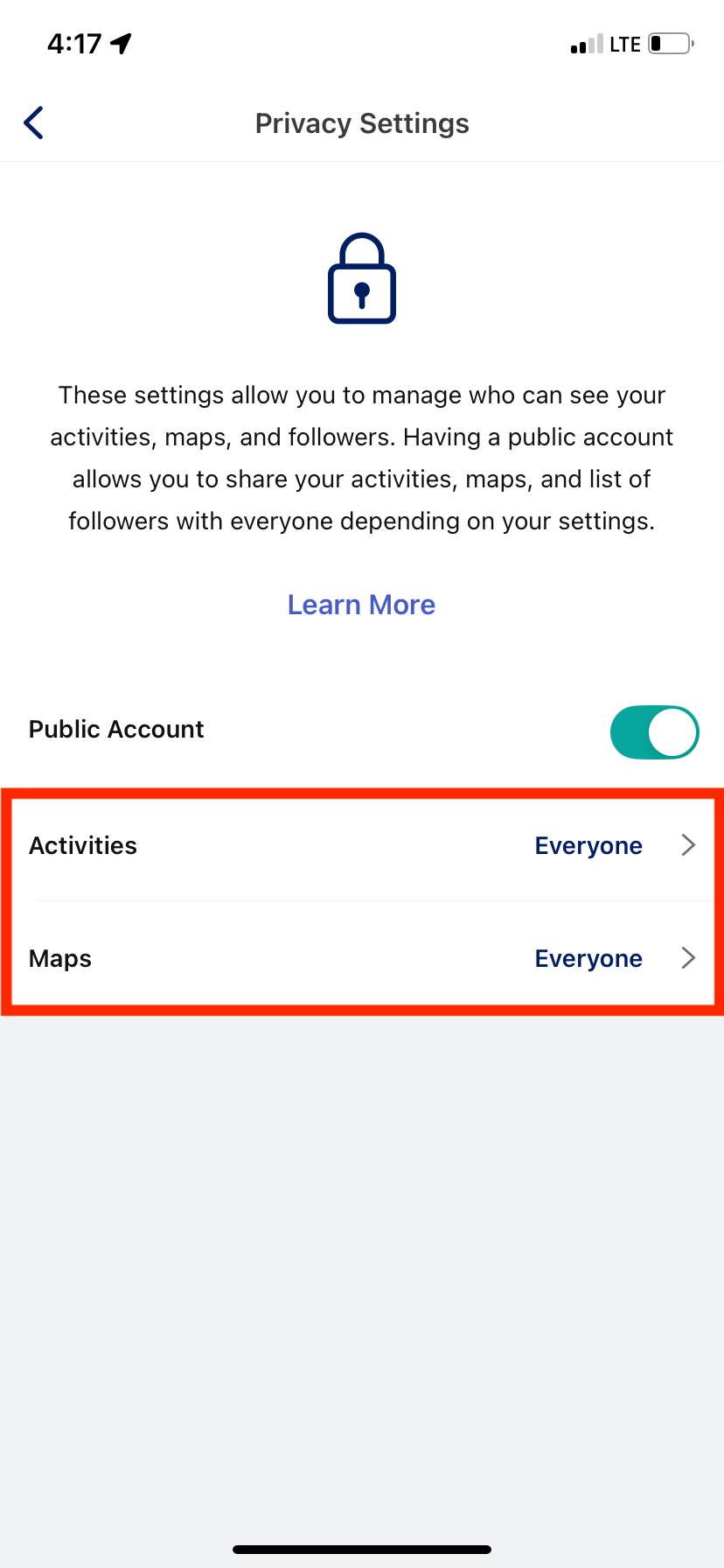
Change your privacy settings to "Public "
Open Runkeeper on your mobile device and log in
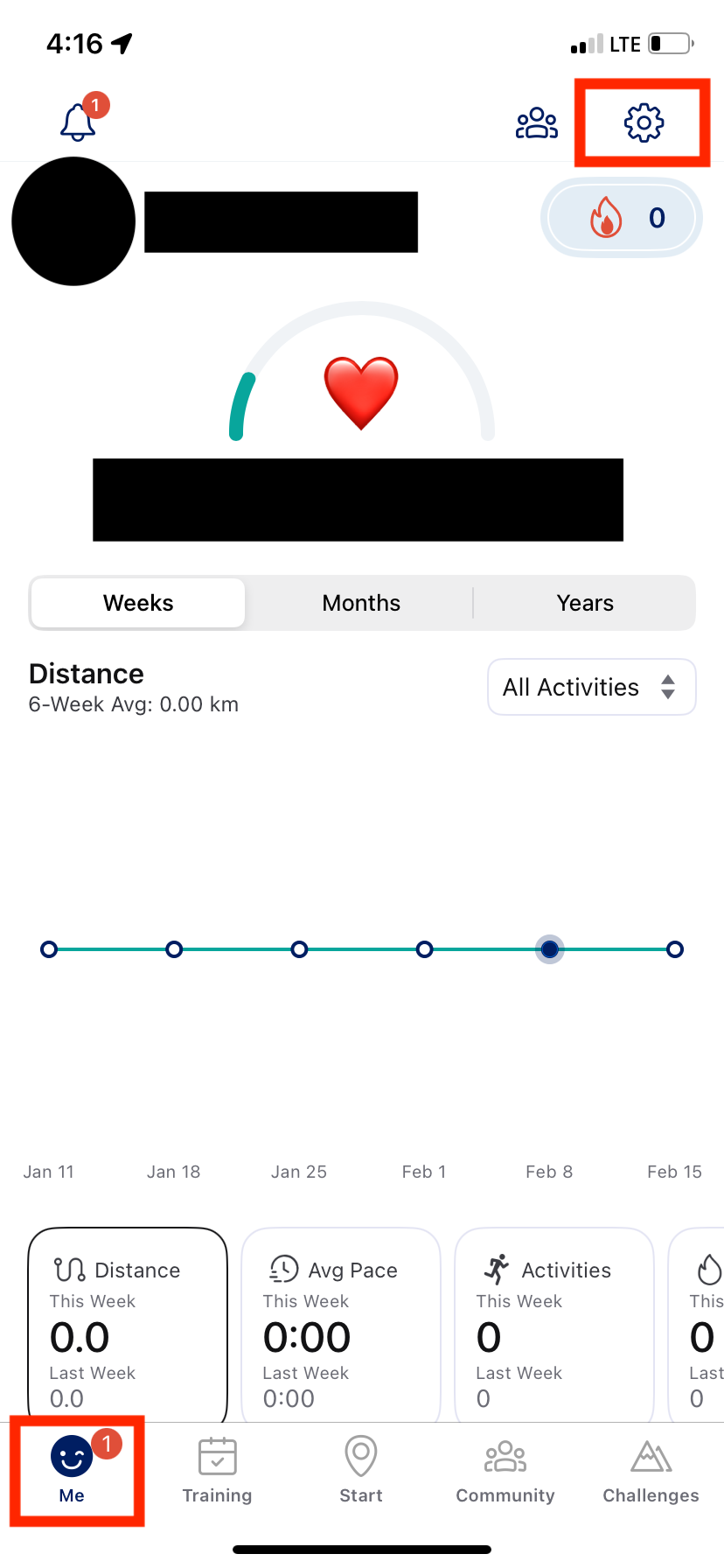
Click the “Me” tab- the button on the left hand side of the bottom of the screen
On your “Me” tab, click the settings gear in the top right corner
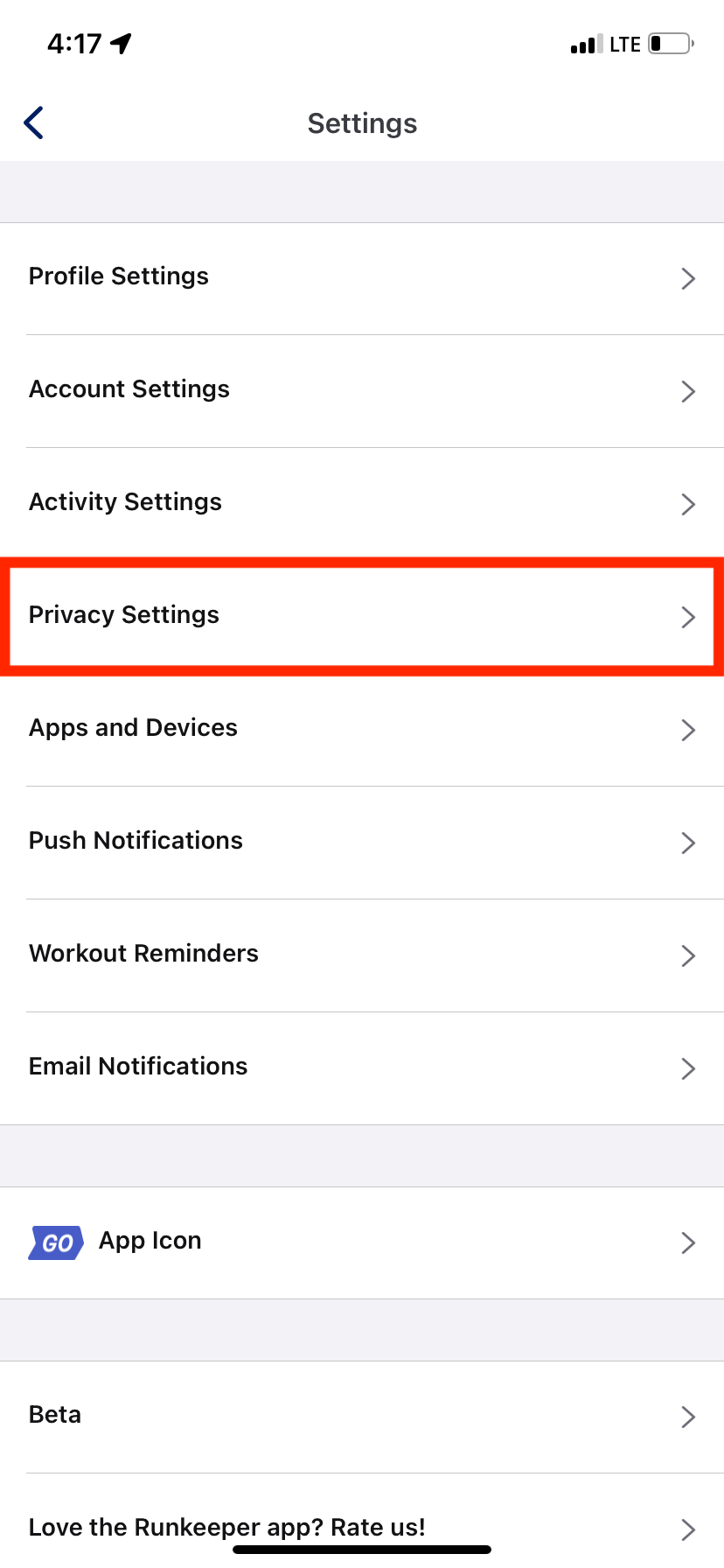
Open the privacy settings tab
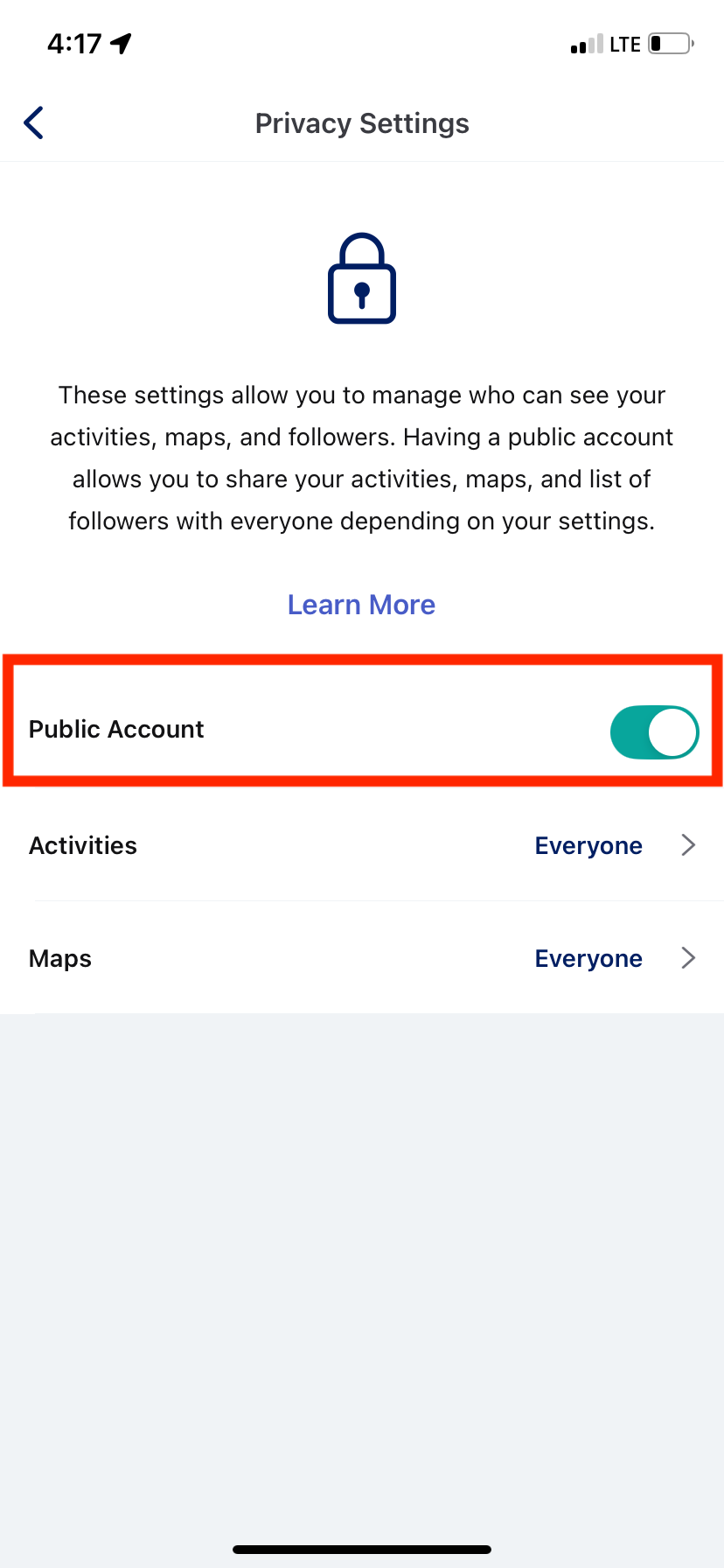
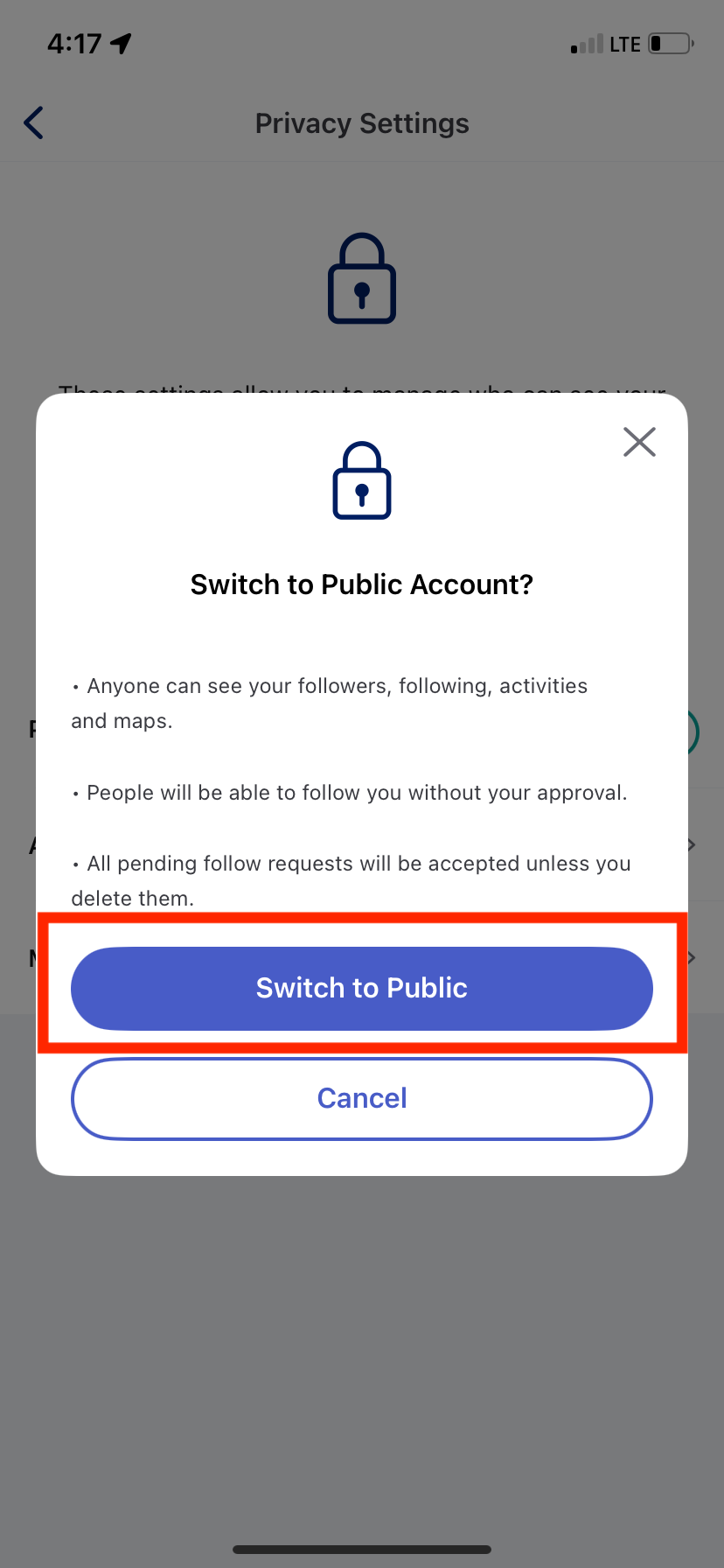
Turn the public account toggle on
Then click “Activities” and change to "Everyone" (this will save automatically), click the arrow back to return to the previous screen
Then click "Maps" and change to "Everyone" (this will save automatically), click the arrow back to return to the previous screen
You can return to the Runkeeper home screen or close your app, everything will save automatically
 |  |  |
 |  |
Change your mileage to kilometers
Open Runkeeper on your mobile device and log in
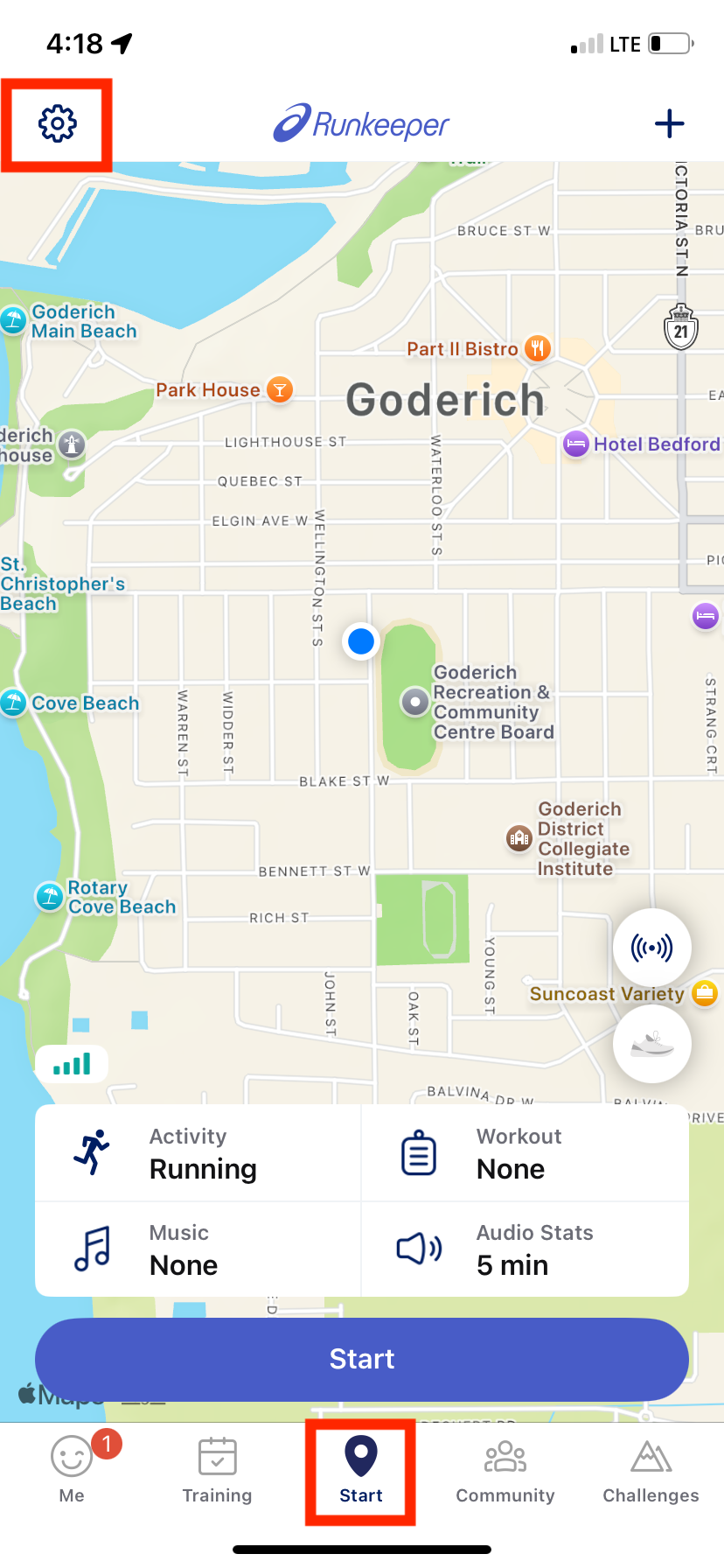
Click the “Start” tab- the middle button on the bottom of the screen
Click the Settings gear in the top left corner
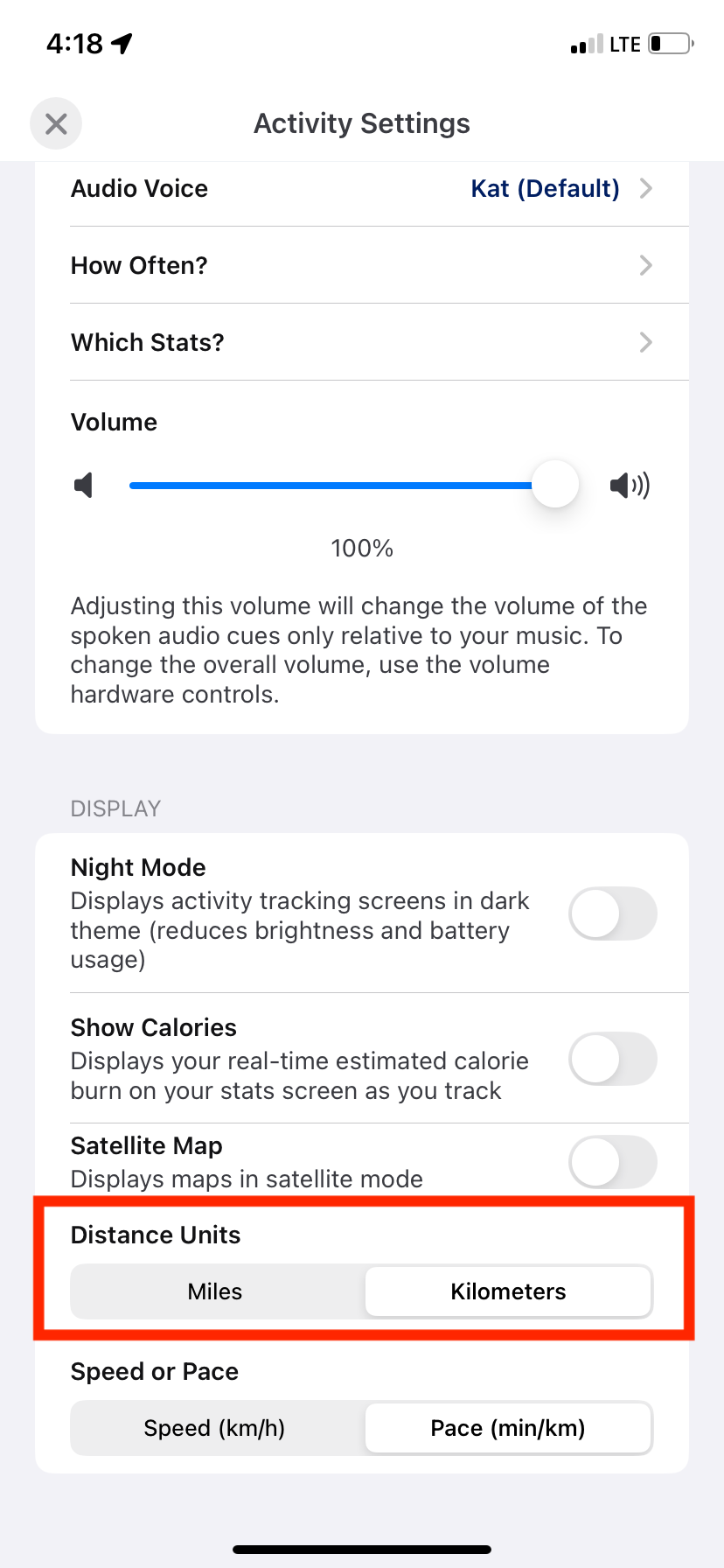
Scroll to “Distance Units” and click Kilometers, this will be saved automatically
 |  |
Connect your ASICS Runkeeper App to the Diamond Dash Challenge
You can connect to the Diamond Dash Challenge through Race Roster on your browser on your mobile device (there is no Race Roster app to connect to). Please note, you may see a tab labelled “Challenges” in your app, these are Runkeeper specific challenges, the Diamond Dash challenge is not searchable here.
You can only connect your Runkeeper account to the Challenge Leaderboard once the challenge starts on March 1st, 2026.
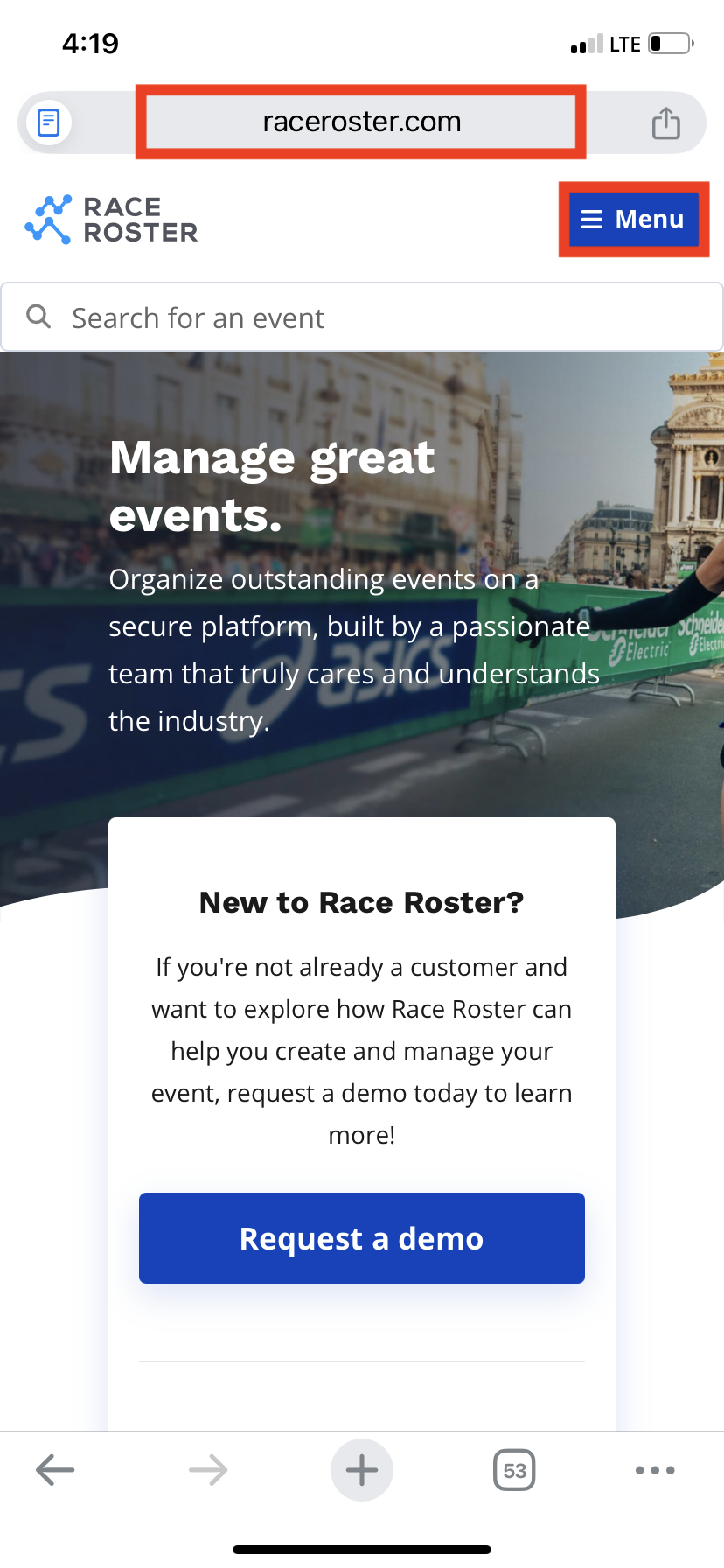
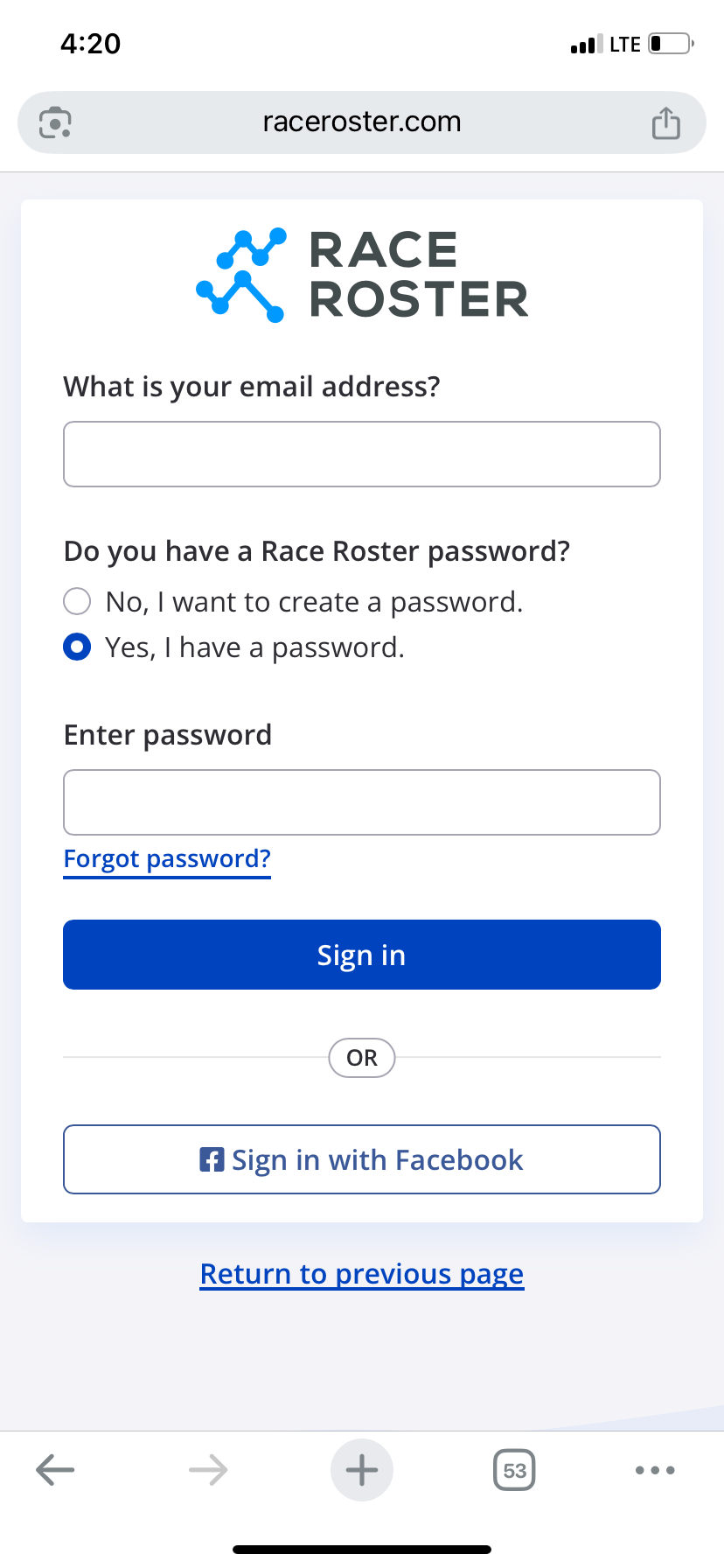
On your mobile device, log into Race Roster through your browser (click menu then sign in) or click the button here on your mobile device.
CLICK HERE TO SIGN INTO RACE ROSTER
 |  |
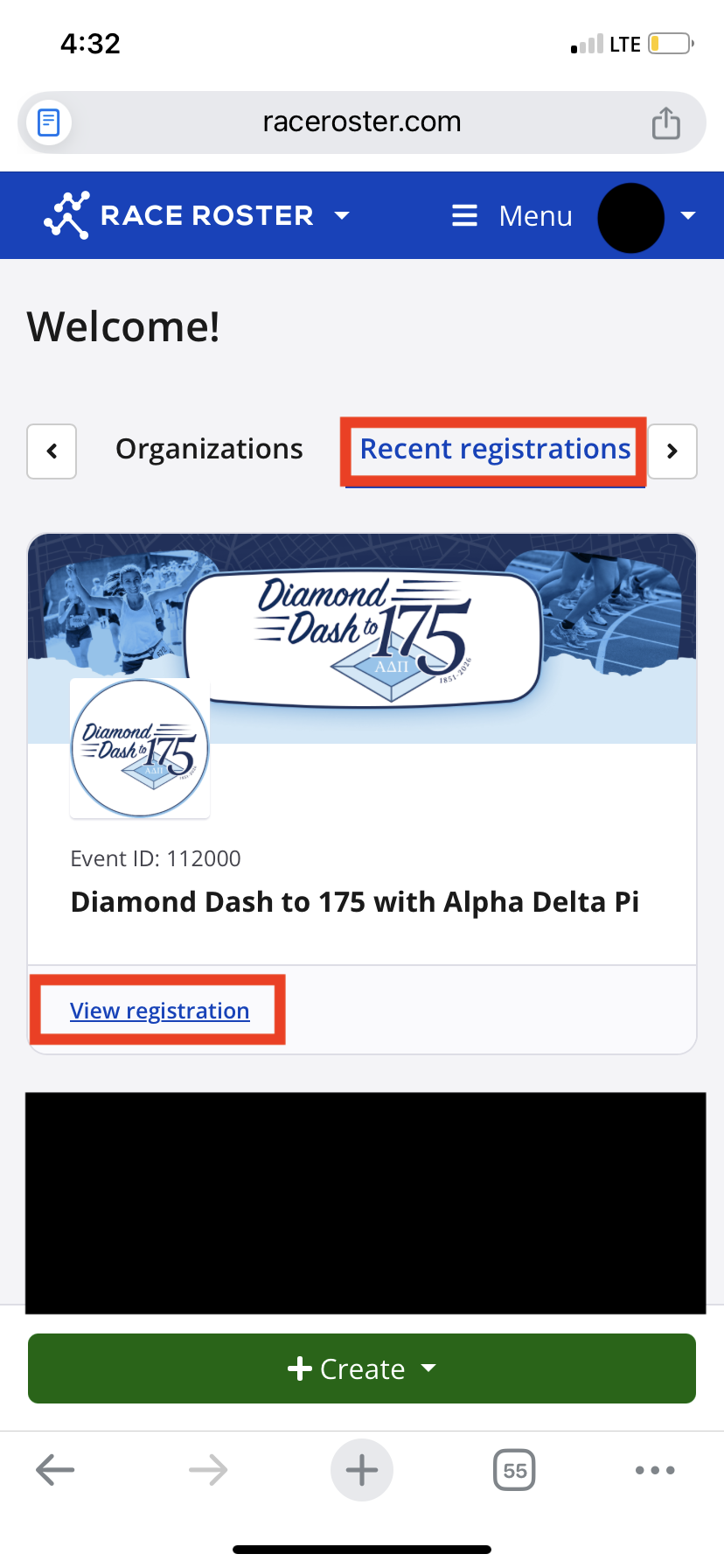
Once you’re logged in, head to your participant dashboard to find your registration for the virtual challenge. You can find your registration under “Recent Registrations” then click “View Registration”
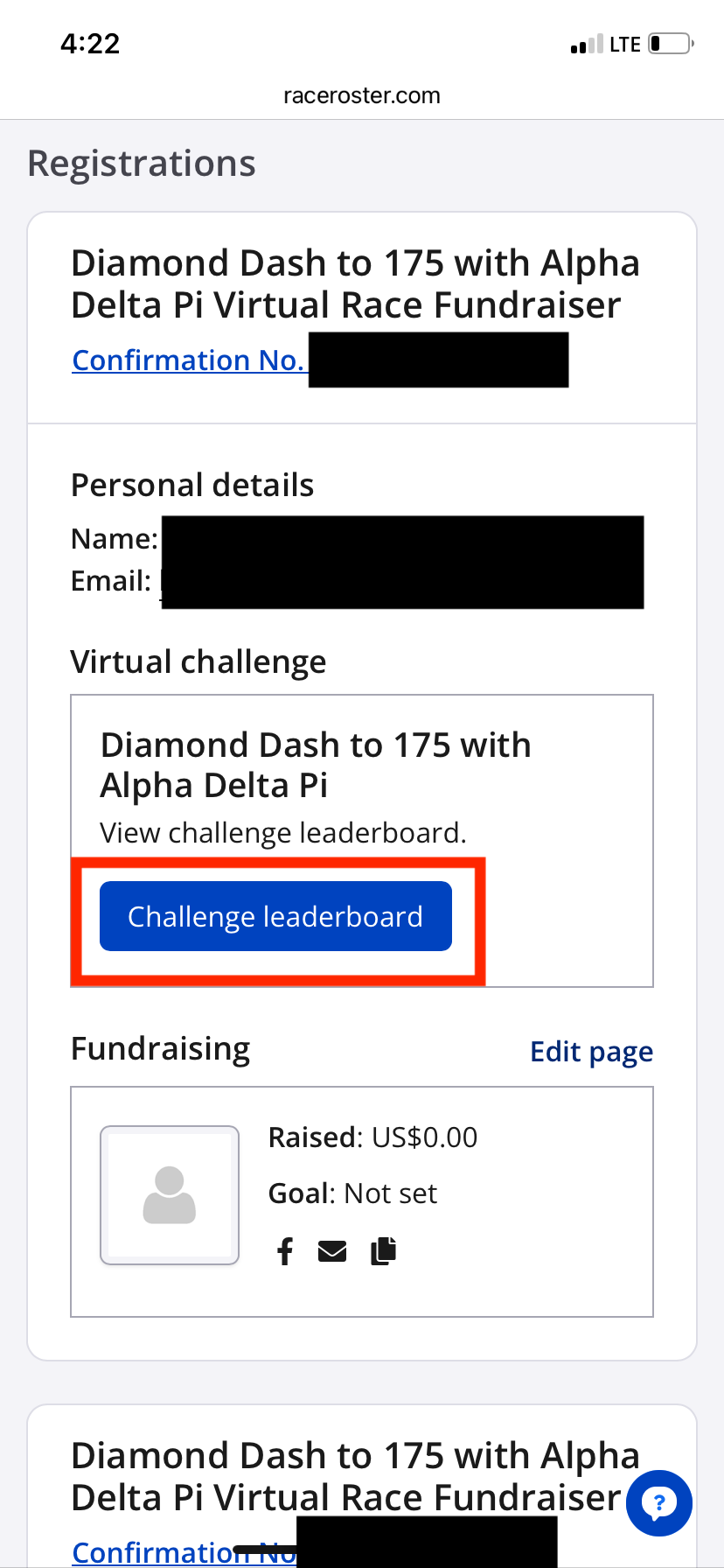
Scroll down and click "Challenge Leaderboard"
Connect your ASICS Runkeeper App to the challenge board by clicking “Post an Activity”
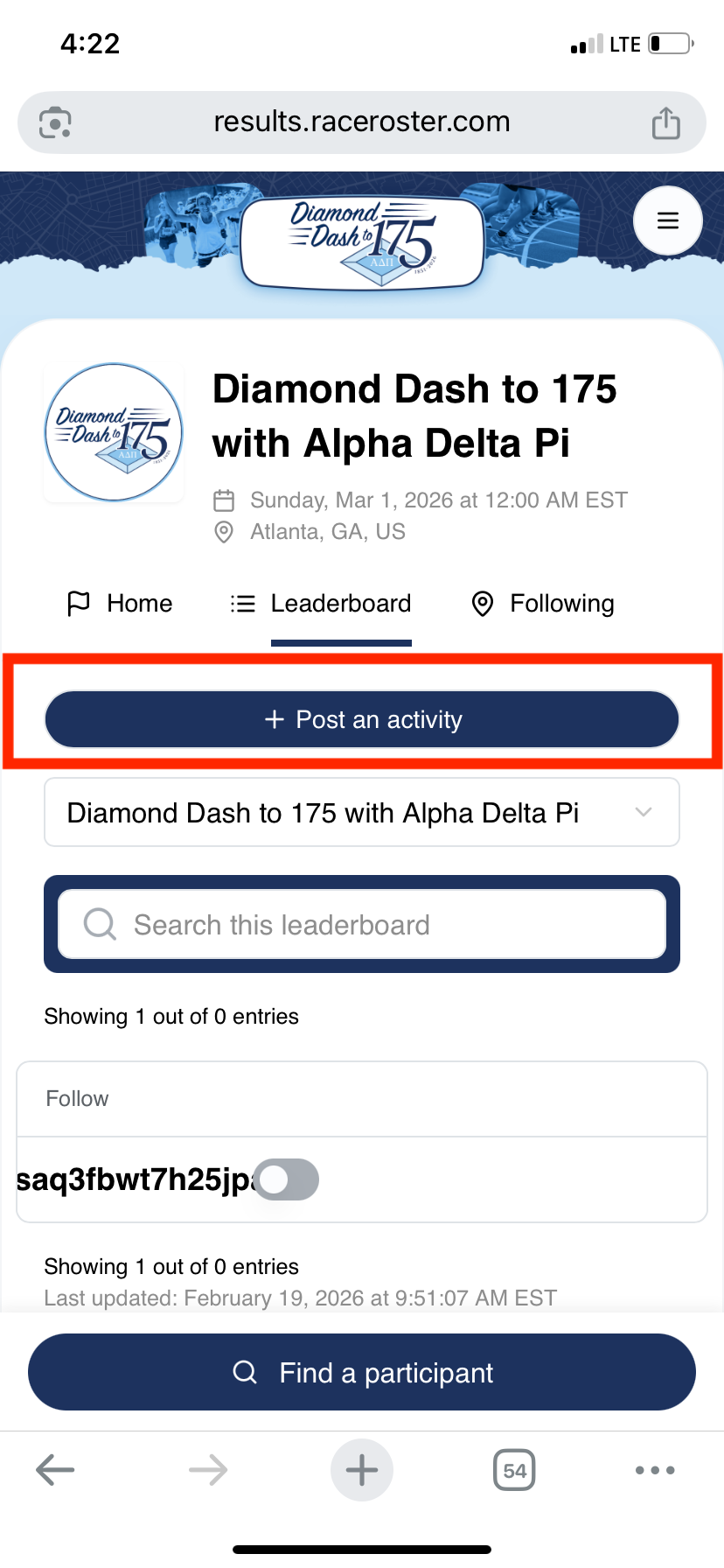
Reminder, you cannot connect to the leaderboard until the Diamond Dash challenge begins on March 1st.
Scroll down to the "Connect to the Runkeeper App header"
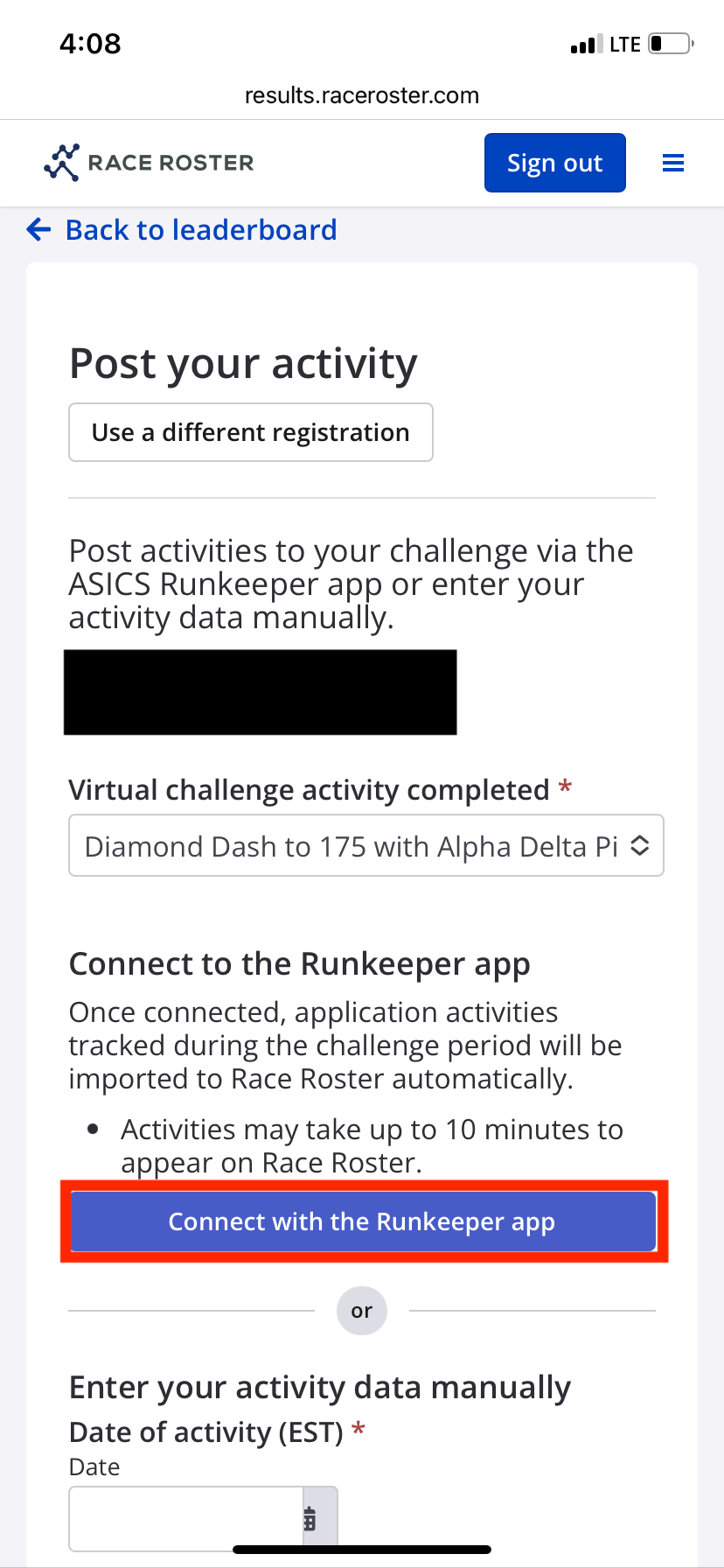
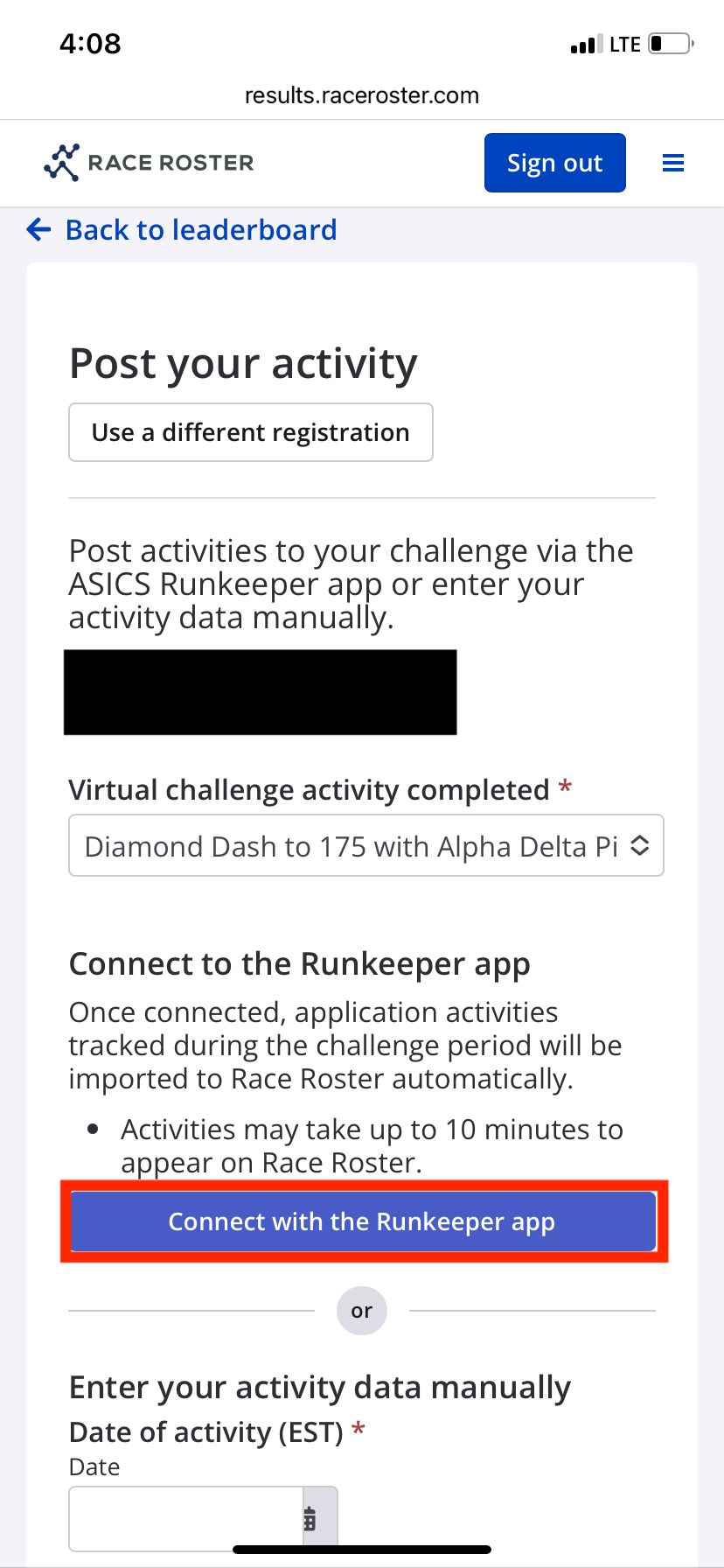
Click the button that reads “Connect with the Runkeeper app”
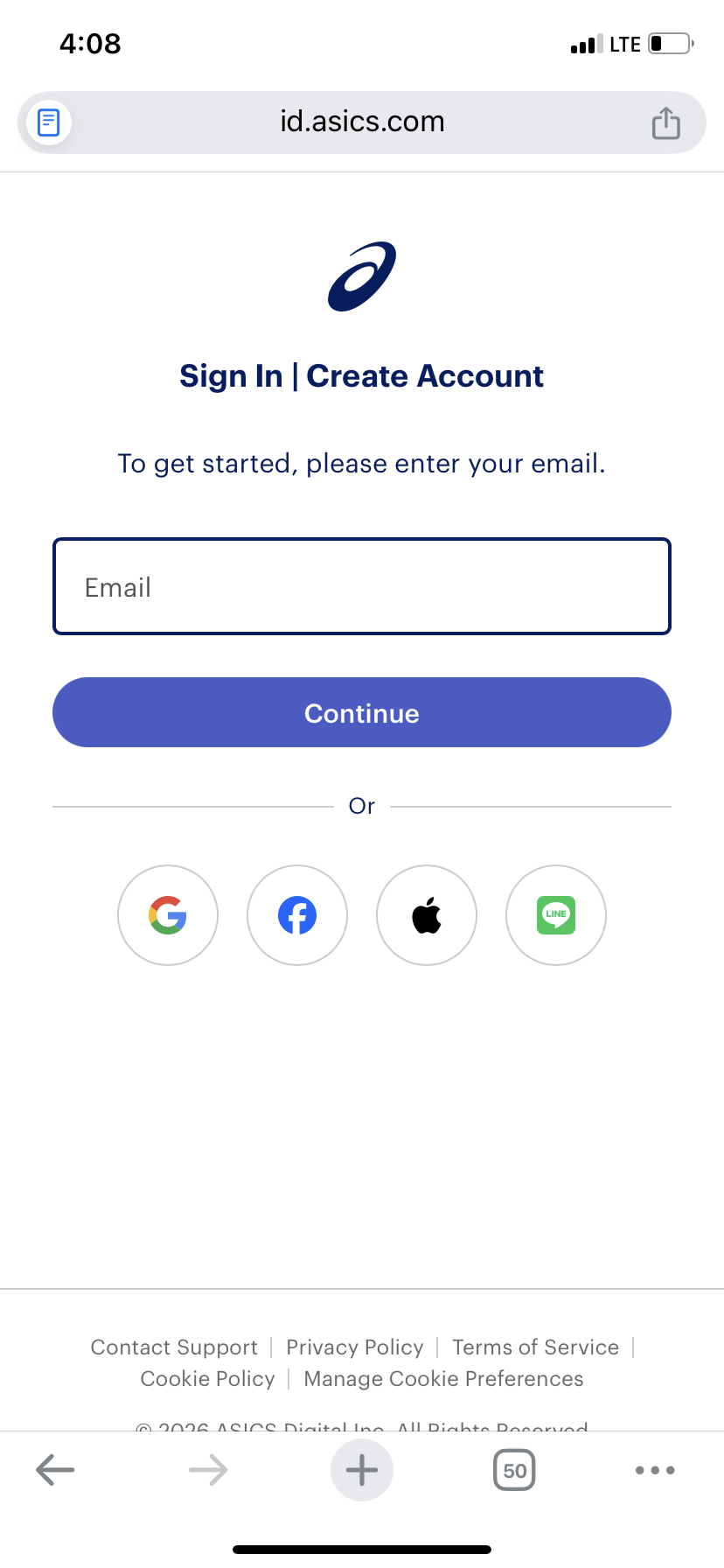
You will then be prompted to a log in screen where you can enter your ASICS Runkeeper log in information
You will then be connected and redirected back to the Challenge Leaderboard. To ensure you are connected, click “Post an Activity” again and you should be brought to this screen that says “Connected”
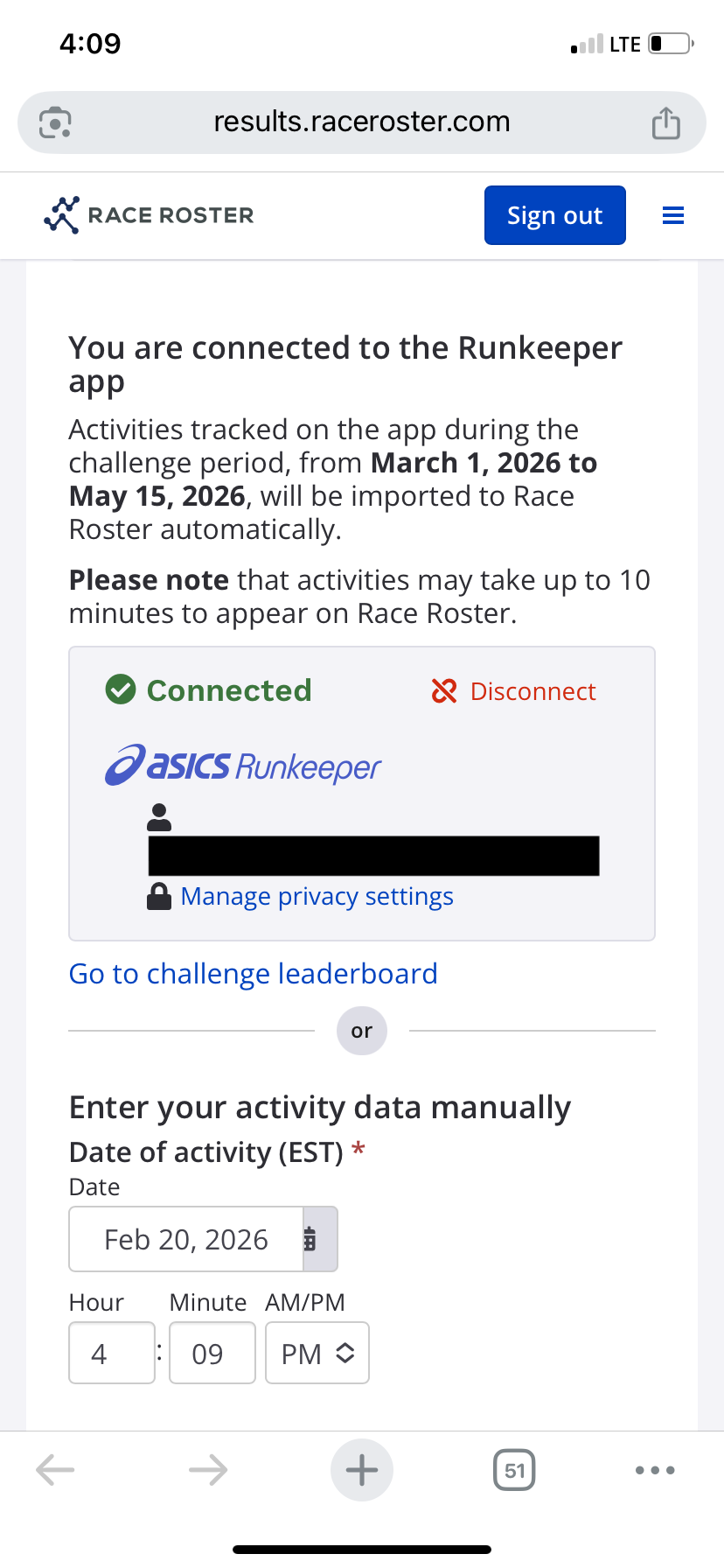
To ensure automatic posting of your activities to the Challenge Leaderboard, click "Manage Privacy Settings" and check all three boxes and then “save”
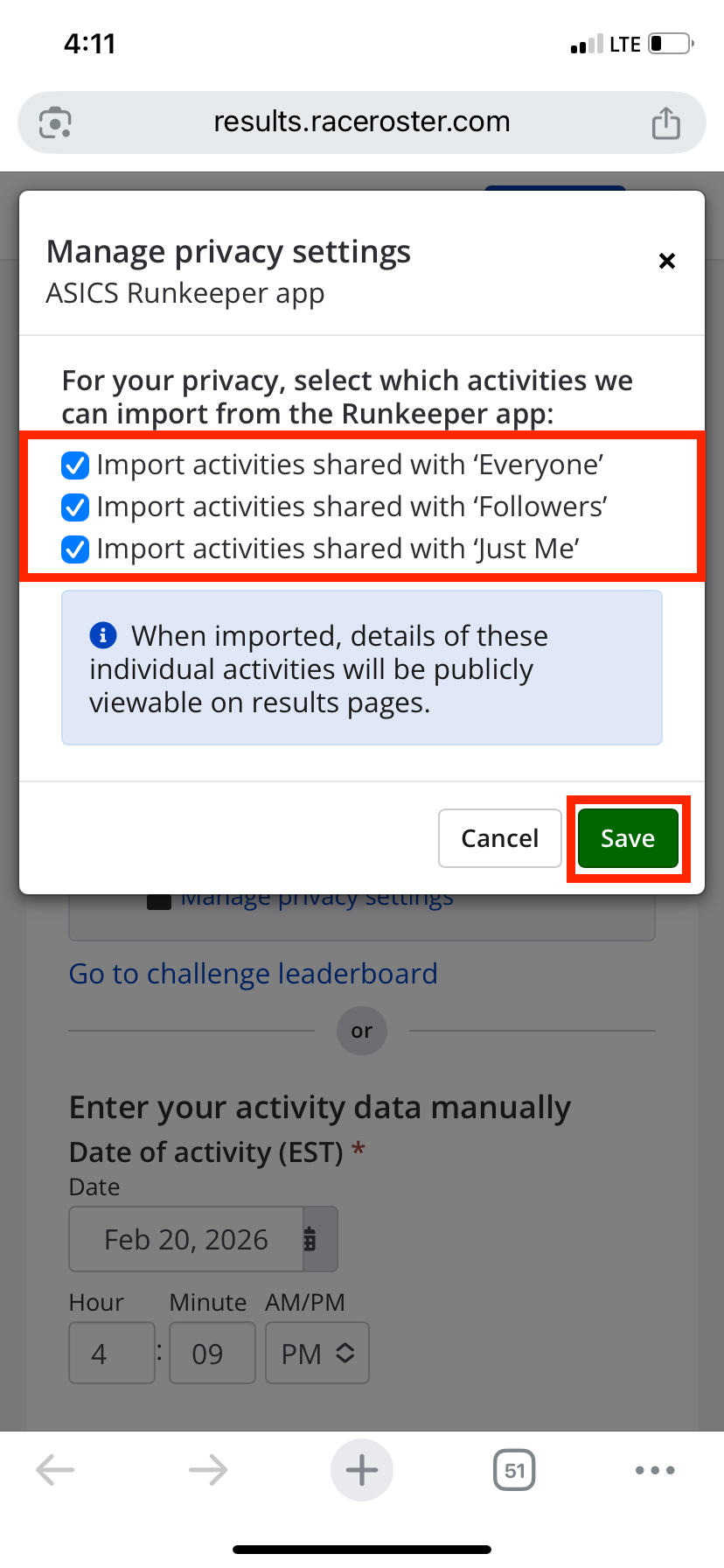
Click back to "Leaderboard" or "Go to Challenge Leaderboard" to return to the Challenge Leaderboard
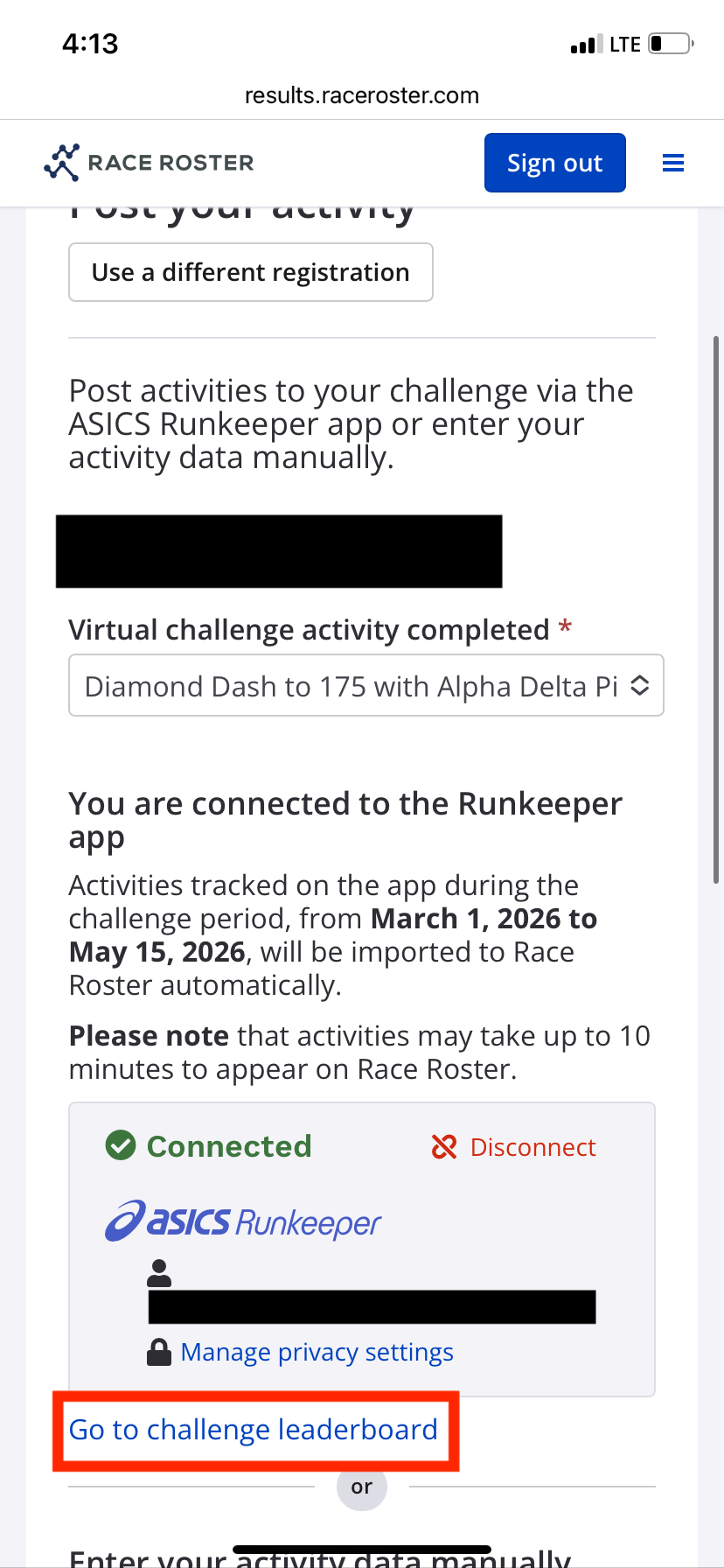
Activities tracked from March 1st, 2026 to May 15th, 2026 will be imported to the Challenge Leaderboard automatically. Please note these activities must be tracked under the activity type of running, walking or wheelchair within the app to count towards your challenge goal.
Please reach out to Race Roster by email (support@raceroster.com) or phone (1-855 969-5515) if you run into any difficulties or questions!